

I. Purpose
Help cashiers create and process To-go orders, record customer information, add items and quantities, and capture special requests.
Cashiers can also apply item discounts and complimentary items, send orders to the Kitchen/Bar for preparation, and collect payments, including promotions, tips, and payments by cash, card, or Gift card.
II. Instruction steps
Step 1: Create a To-go order
- Select To-go as the service type.
- On the Order entry screen, enter the customer’s information, then tap Done.

- Tap the requested items in the menu list. Each tap adds one serving. For larger quantities, tap the Quantity field next to the item to enter the quantity directly.
- If the customer has special requests, tap the item or the icon
 to record the instructions.
 - To apply an item discount or offer a complimentary item, tap the icon

Note: If an item was added by mistake, tap the cancel icon next to the item to remove it.

- After entering the order information, tap Fire to send the items for preparation.
- If the customer wants to pay immediately, tap Pay. The system automatically sends the items to the Kitchen/Bar for preparation and prints the bill for the staff member handing over the order.
Step 2: Collect payment for the To-go order
- Open the order list and select To-go.
- When the customer’s pickup time approaches, tap the search icon to find the order requiring payment, then tap Pay.
- Tap the promotions icon and select the applicable promotions.
- Enter the tip amount provided by the customer.
- Select the payment method:
- Cash or card: Select the corresponding payment method, then enter the amount received or select one of the suggested amounts.
- Gift card: Tap the Gift card icon and enter the customer’s card information.
III. Notes
1. Hold orders when advance payment is required
If the restaurant has configured advance payment for To-go and delivery orders that meet a specified order-value threshold, the Hold button appears on the order screen.
Cashiers can tap Hold to save the order before handing it over.
2. Add items using PLU codes
If the restaurant uses numeric item codes, cashiers can quickly add items using the PLU keypad.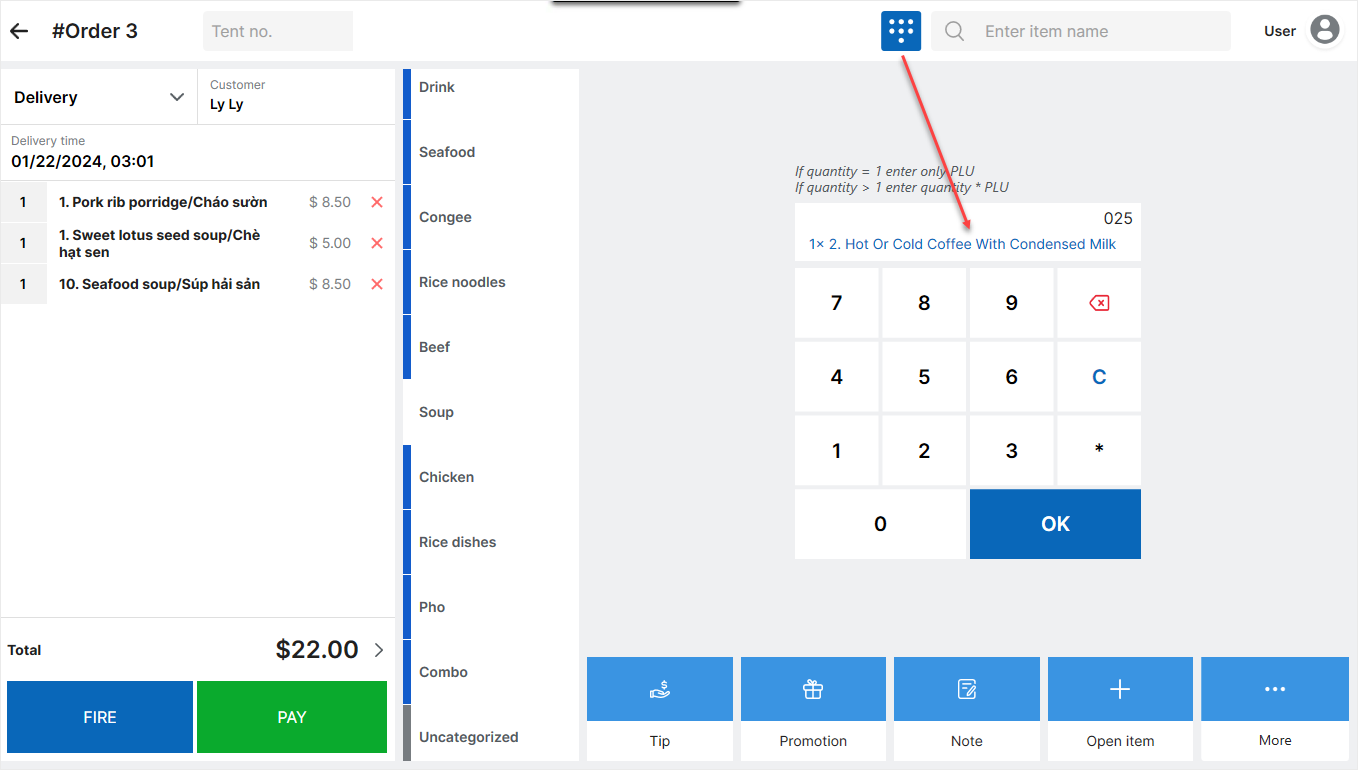
For detailed instructions, see Sell and manage the menu using PLU.
Have a nice day!


