

I. Purpose
This feature allows restaurants to configure and optimize their online menu, ensuring that:
- Only the appropriate items are displayed on the Online Ordering website
- Managers can adjust pricing and item details specifically for the online channel
- Recommended items can be highlighted to increase upselling opportunities
- Modifiers are properly configured to match customer ordering behavior online
II. Instruction steps
1. Configure Items for the Online Channel
1.1 Add Items to the Online Menu
By default, the system automatically displays all items that are enabled for the Online sales channel. 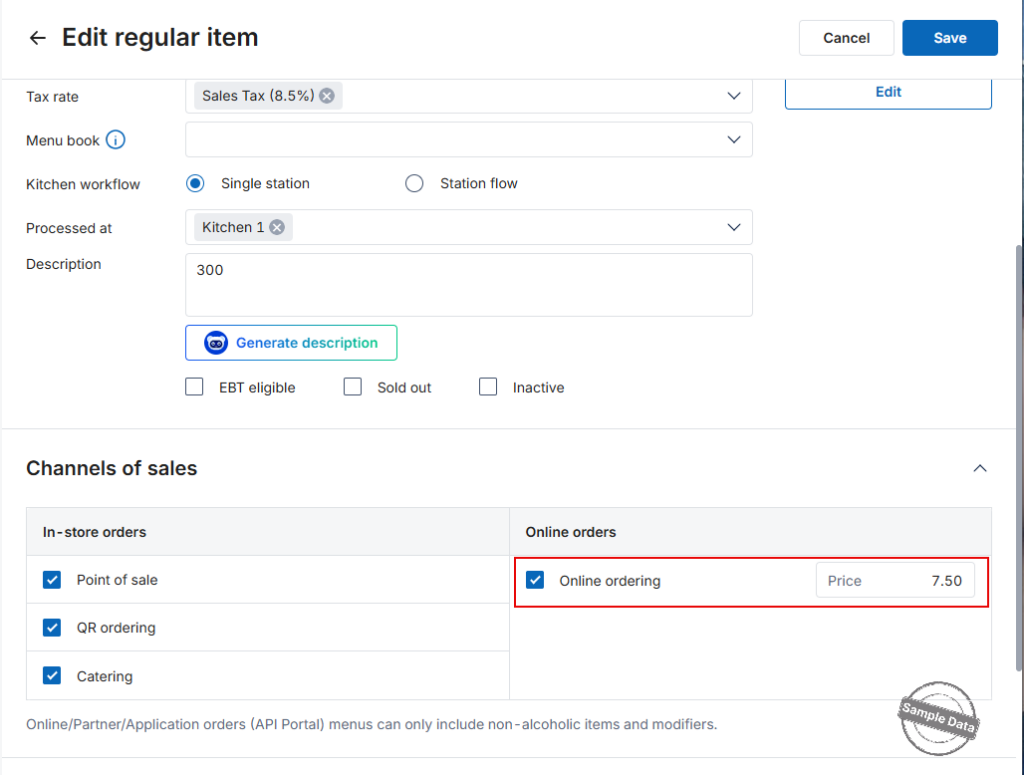
To manually add items:
- Go to the Online Ordering app.
- Select Menu online.
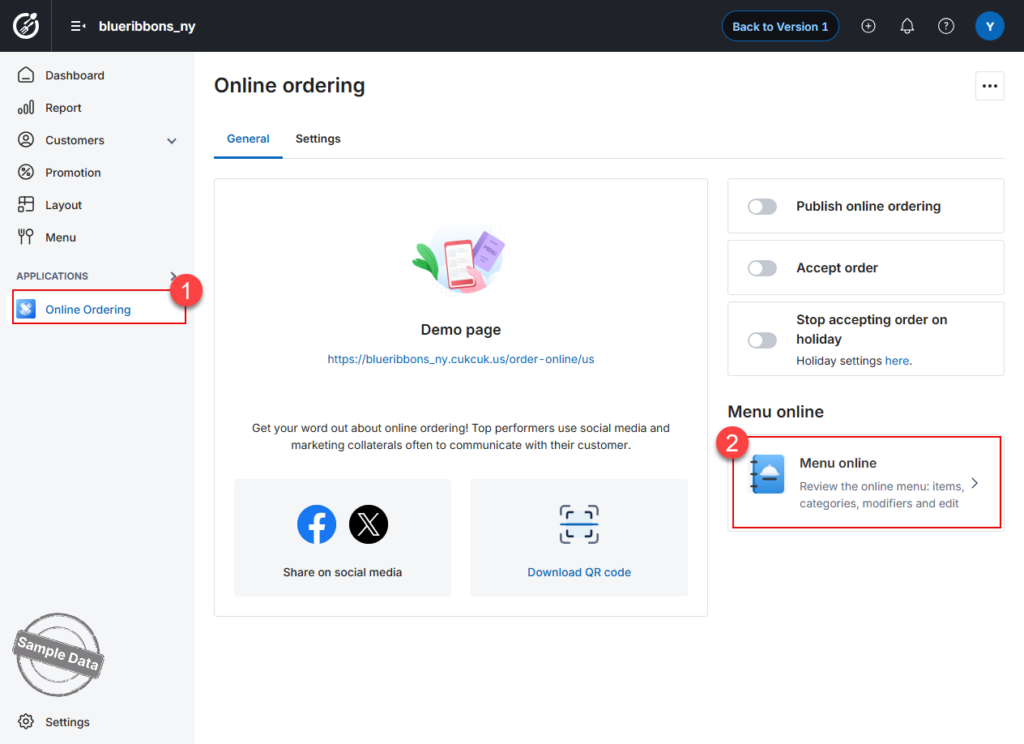
- Open the Items tab.
- Click Add items.
- Select the items you want to add.
- Click Select to confirm.
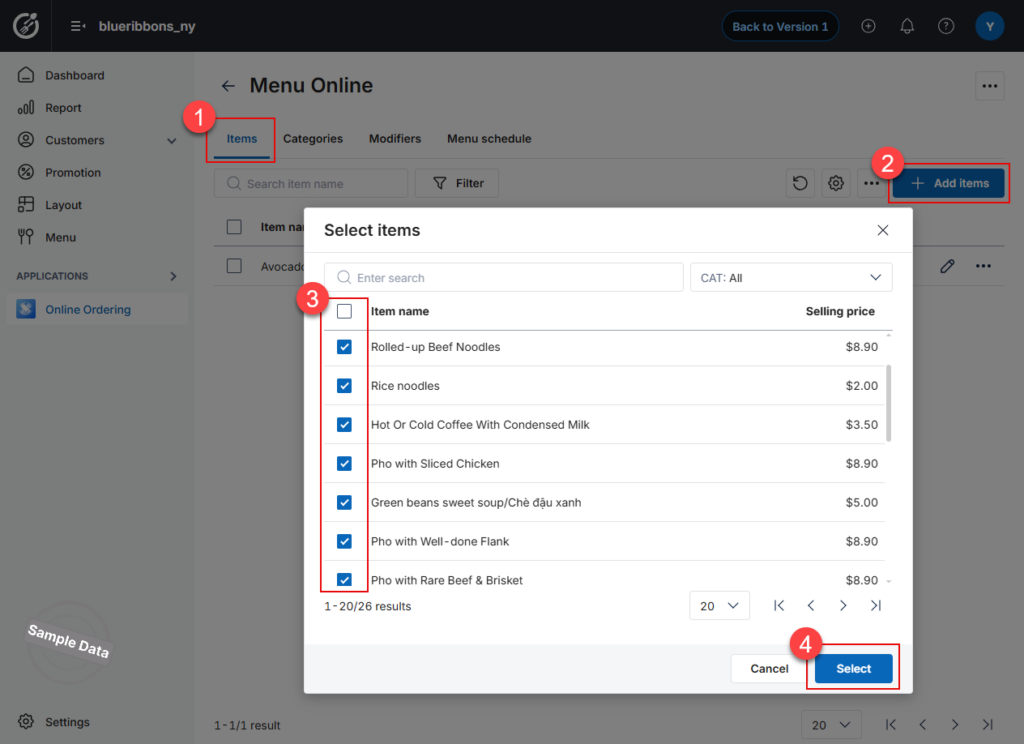
The selected items will now appear on the online menu.
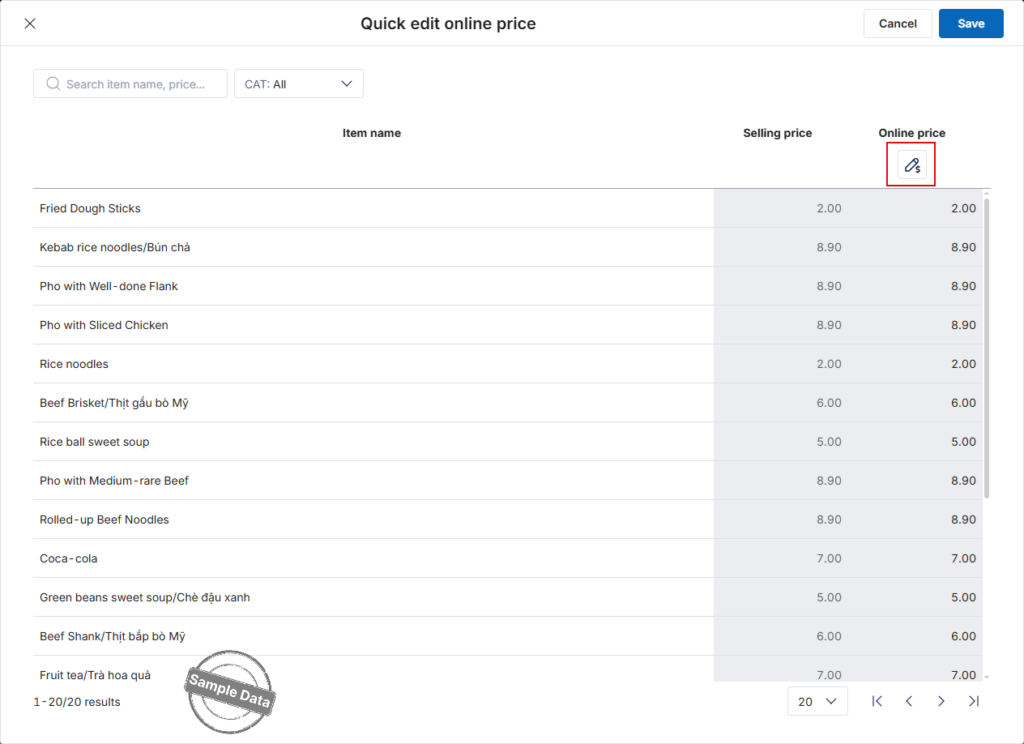
1.2 Quick edit price and item name
This feature allows you to quickly update prices for all items on the online menu.
- Click the icon
 and select Quick edit.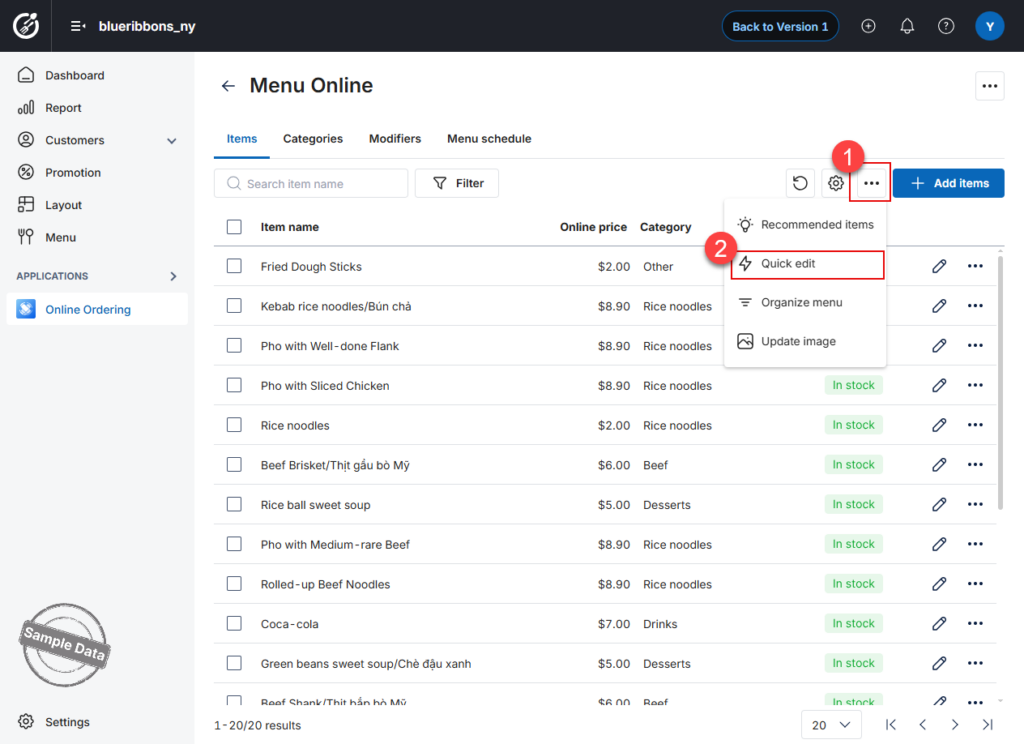
- In the Online price column, click the edit icon.
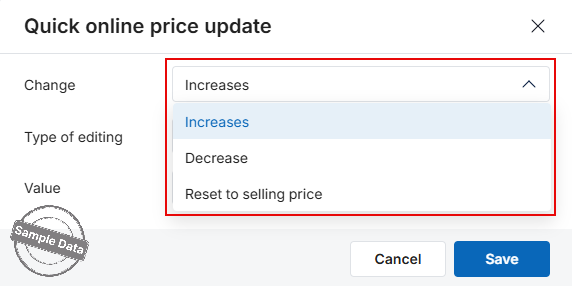
- Choose one of the following options:
- Increase price
- Decrease price
- Reset to selling price
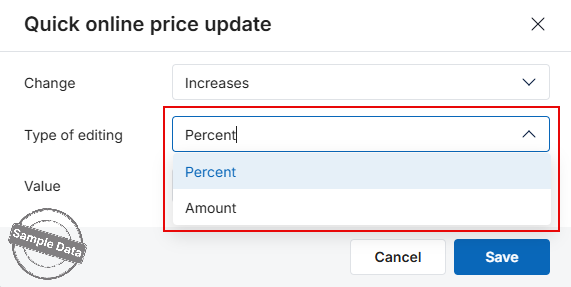
- Select the adjustment type:
- By percentage (%), or
- By amount
- Enter the value.
- Click Save to apply the changes.
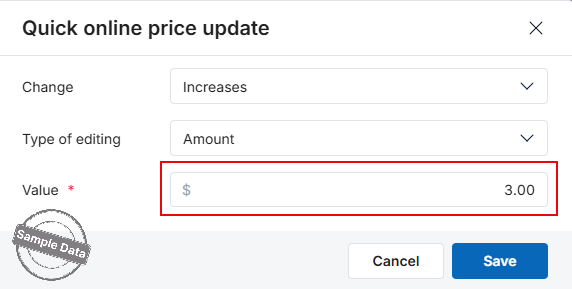
The updated prices will be applied to all selected items.
⚠ Note:
If the updated prices result in uneven numbers, the system will apply rounding rules configured in System Settings
Quick edit item name
You can also edit the item name directly in the list.
- Click on the item name field.
- Enter the new name.
- Click Save to apply changes.
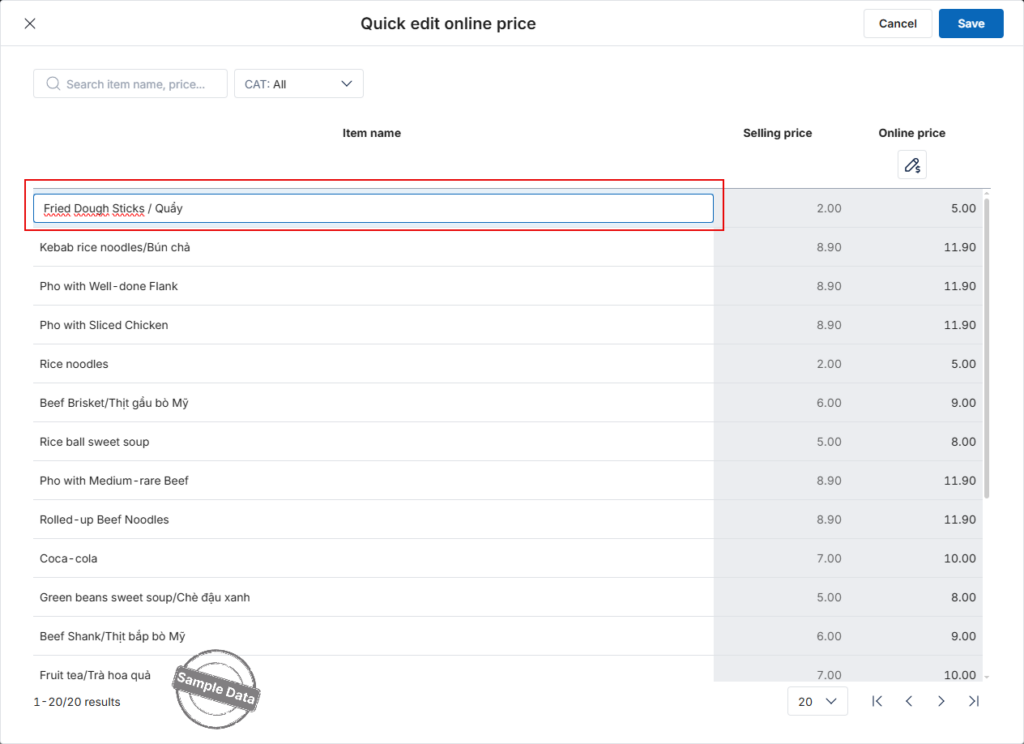
Note:
- Only the main item name can be edited.
- Variant names cannot be modified in this section.
2. Set up modifiers
By default, modifiers follow the configuration from the Main Menu when Online Ordering is first published.
Editable Fields
Click edit button on the modifier and the managers can customize the following:
- Name
- Multi-select
- Required
- Default
- Inactive
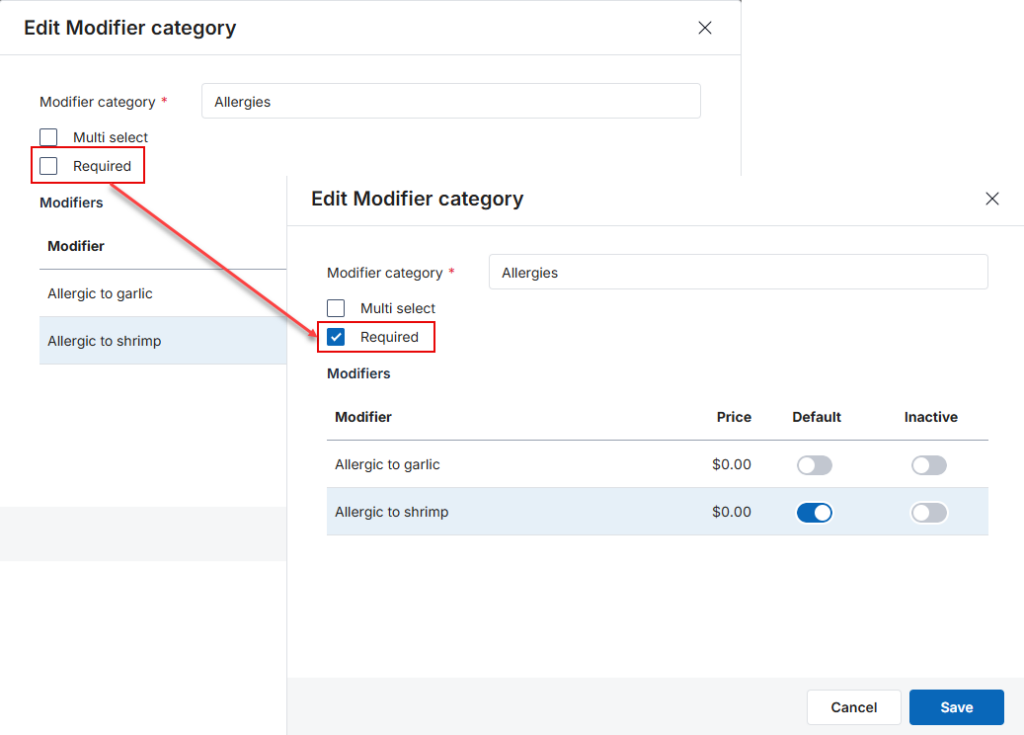
You also can add modifier by clicking Add modifier category.
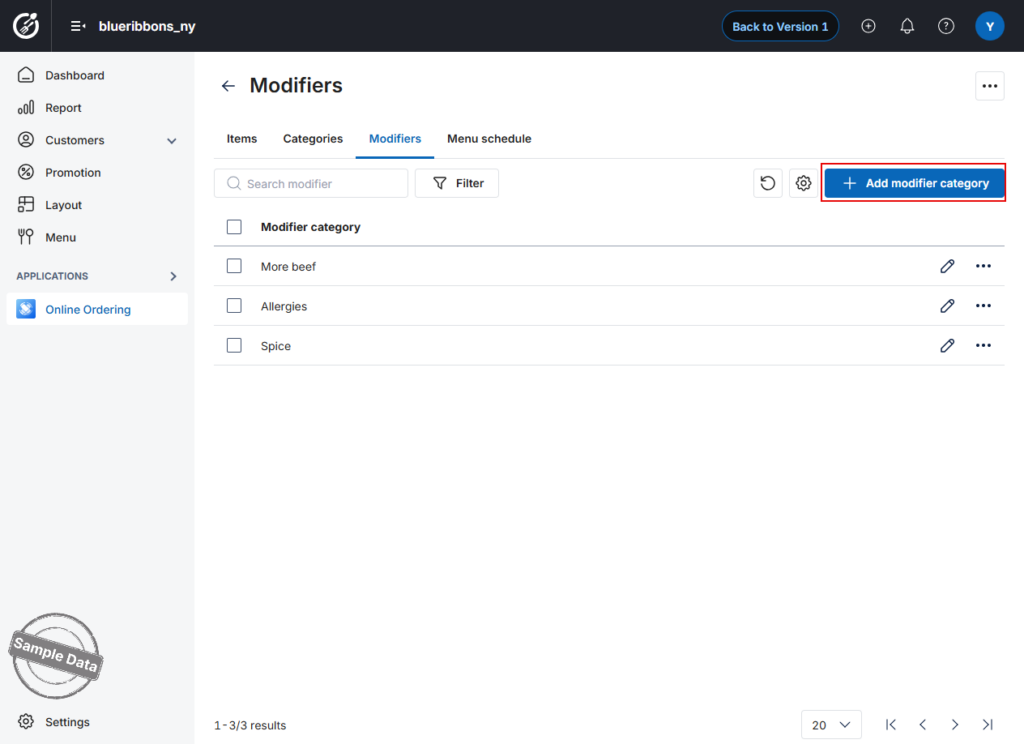 Important Note:
- These changes apply only to the Online channel
- They do not sync back to the Main Menu
The online menu is now fully configured and optimized for customer ordering.
Have a nice day!


