

I. Purpose
Help users choose how Customer, Loyalty, SMS Marketing, and Gift Card data is used when creating a location:
- Shared data: Share data with other locations that use this mode.
- Separate data: Maintain independent data without sharing it with other locations.
This setting is configured on the Add/Edit Location screen. Once a location is saved, the selection is locked unless the restaurant has only one location.
II. Instruction steps
1. Configure the data usage mode when adding a location
- On the management site, go to Settings –> Location.
- Select Add location.
- Enter the location details under Location information.
- Under Data using mode, select a mode for each data group:
- Customer/Loyalty/SMS marketing.
- Gift card.
- Save the location.
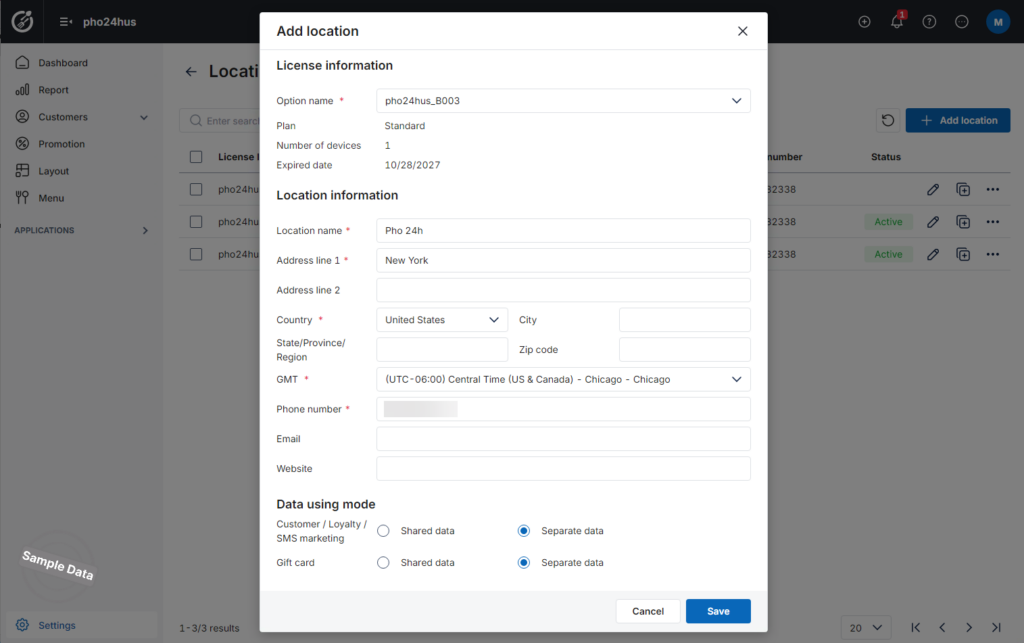
Both groups default to Shared data. You can select the appropriate mode for each group before saving.
Select Shared data if you want the location to share data with other locations that use this mode.
Locations that share data belong to a group called the Sharing pool.
- For Customer/Loyalty/SMS marketing, locations in the Sharing pool share the corresponding data.
- For Gift card, locations that select Shared data share Gift Card data.
1.2. Separate data
Select Separate data if you want the location to manage its data independently.
The location’s data is not shared with any other location.
Note: Review the selections for both data groups before saving. If the restaurant has two or more locations, these settings cannot be changed after the location is saved.
2. Change a location’s data usage mode
- In Settings –> Location, open the location you want to edit.
- Click edit icon, review Data using mode.
- Follow the applicable scenario below.
2.1. Restaurants with only one location
If the restaurant has only one location, counting both active and inactive locations, you can:
- Change from Shared data to Separate data.
- Change from Separate data to Shared data.
Save the settings after making the change.
2.2. Restaurants with two or more locations
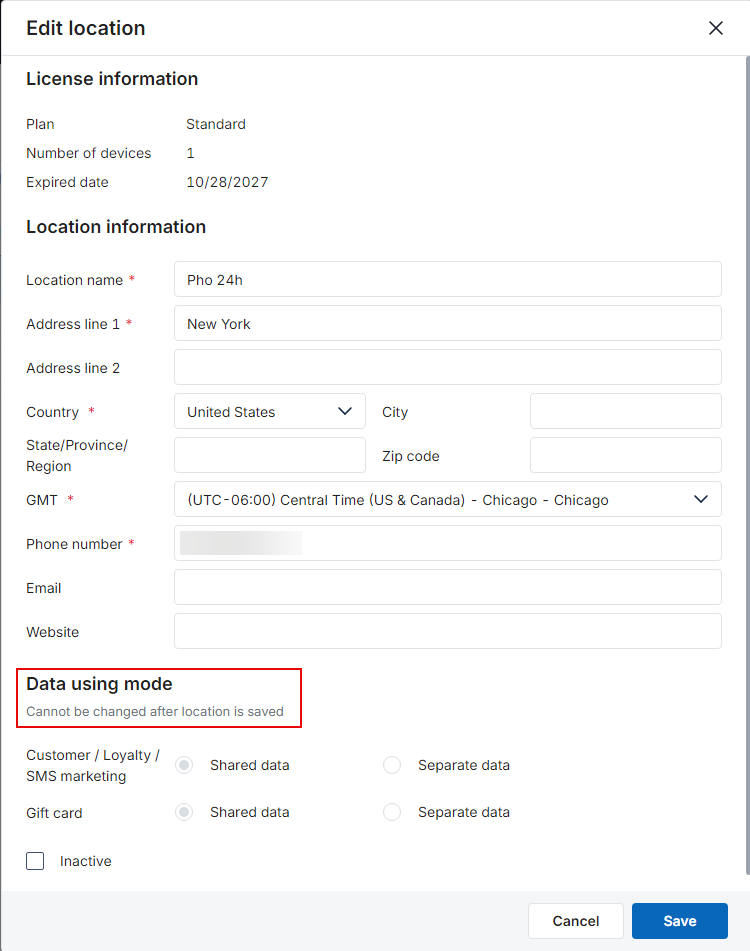
If the restaurant has two or more locations, counting both active and inactive locations, all options under Data using mode are locked.
The system displays:
“Cannot be changed after location is saved.”
2.3. Delete a location so that only one location remains
If the restaurant has two locations using Shared data, and one has no menu, floor plan, or transactions, the system allows users to delete that location.
After deletion:
- The restaurant has only one location, and Data using mode can be changed.
- If the remaining location is changed from Shared data to Separate data, all data in the Sharing pool becomes that location’s separate data.
3. Review customer data by location
In Customer, users with access to multiple locations can use the location filter to select the data scope:
- All locations: View data across all locations.
- Location name: View the independent data of a location using Separate data.
- Sharing pool: View shared data for locations using Shared data.
Hover over Sharing pool to view the locations in the group that are active and have valid licenses.
When All locations is selected, the customer list includes a Location column:
- Separate data displays the location name.
- Shared data displays Sharing pool. Hover over this value to view the locations in the group.
4. Review Loyalty, e-Gift Card, and SMS Marketing
In Loyalty, e-Gift card, or SMS marketing, use the location filter:
- All locations: View data for locations using separate data and for the Sharing pool.
- Location name: View the location-specific policies and data of a location using Separate data.
- Sharing pool: View shared policies and data for locations using Shared data.
Notes:
- Locations in the Sharing pool share the policies and data of the corresponding feature.
- Locations using Separate data have their own policies.
- Hover over Sharing pool to view the locations in the group that are active and have valid licenses.
5. Review permission to process gift cards from other locations
For locations using Shared data, Gift Card permissions include:
Process gift card issued from other branches
Users granted this permission can process Gift Cards issued by other locations.
Note: Gift Card codes must remain unique across the entire chain, even when locations use separate data.
IV. Notes
- Deactivating a location does not reduce the location count used to determine whether Data using mode can be changed.
- If all locations in the Sharing pool are inactive, the shared data is retained. A location added later with Shared data will use this existing data.
- If the licenses of all locations in the Sharing pool expire, the shared data is retained. New locations joining the Sharing pool continue to use the existing data.
- Location filters in reports remain unchanged. Report data continues to be organized by individual location.
- The shared or separate data selection affects Customer, Loyalty, and SMS Marketing data on POS, Tablet, A920, Kiosk, Online, and QR channels.


