

I. Purpose
Help restaurant managers adjust the display order of items and menu categories directly on the POS or Tablet, without accessing the management site on a computer.
Restaurants can move new or promoted items to the top of the list, making them easier to find and select when taking orders.
II. Instruction Steps
- On the POS or Tablet, open Menu.
- Select Organize menu to open the menu organization screen.
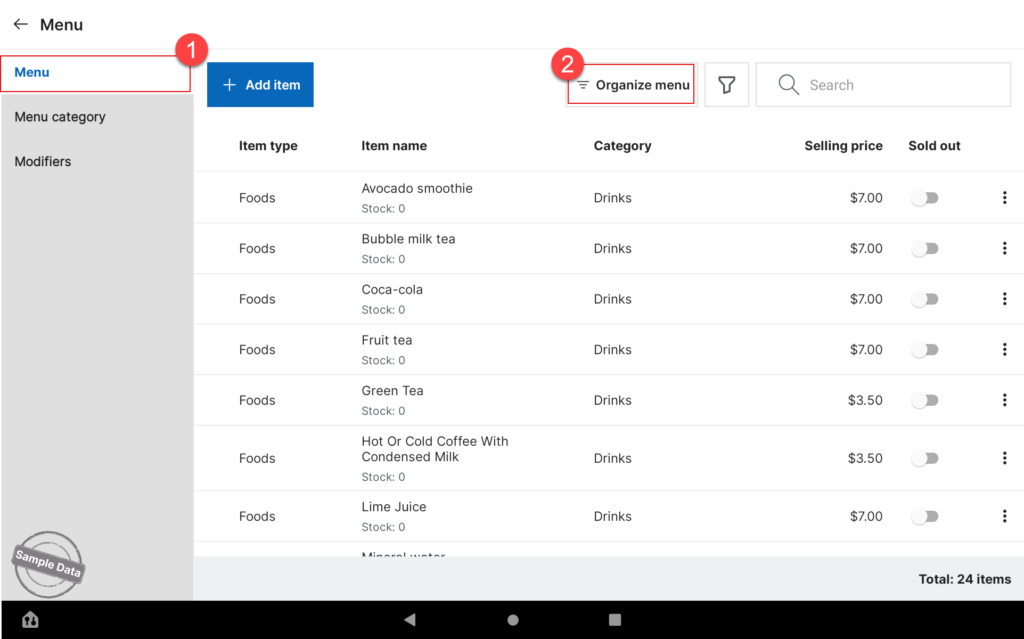
The screen displays the menu categories used by the restaurant or location in Menu offline.
Notes:
- Users must have Edit items permission to use this feature. Without this permission, Organize menu is hidden.
- This feature applies only to the Point of sale menu, not to the online menu.
- On the Organize menu screen, find the menu category you want to update.
- Press and hold the item you want to move.
- Drag and drop the item into the desired position within the category.
- Repeat these steps for other items as needed.
- Click Save to apply the settings.
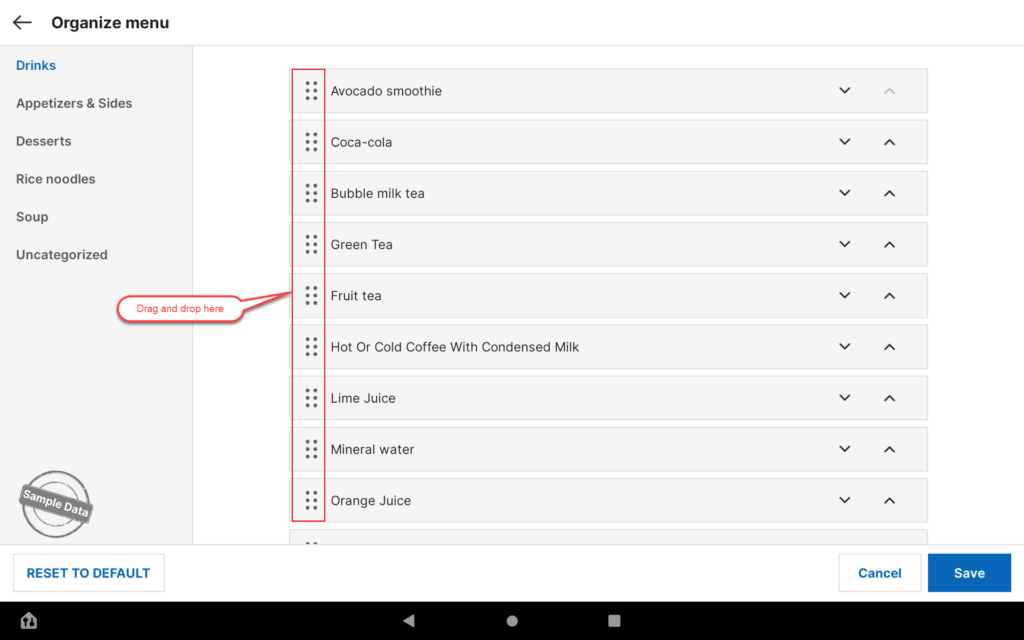
Notes:
- Only manual drag-and-drop sorting is supported.
- For items with variants, only the parent item name is displayed.
- For combos, only the parent combo name is displayed.
- Items added after the menu has been organized appear at the end of the list.
- Items without a menu category appear under Uncategorized, which always remains at the end of the category list.
3. Restore the default item order
On the menu organization screen, select Reset to default to restore the default item order.
Items are then sorted in alphabetical order.
- Open the Categories tab.
- Press and hold the menu category you want to move.
- Drag and drop the category into the desired position.
- Repeat these steps for other categories as needed.
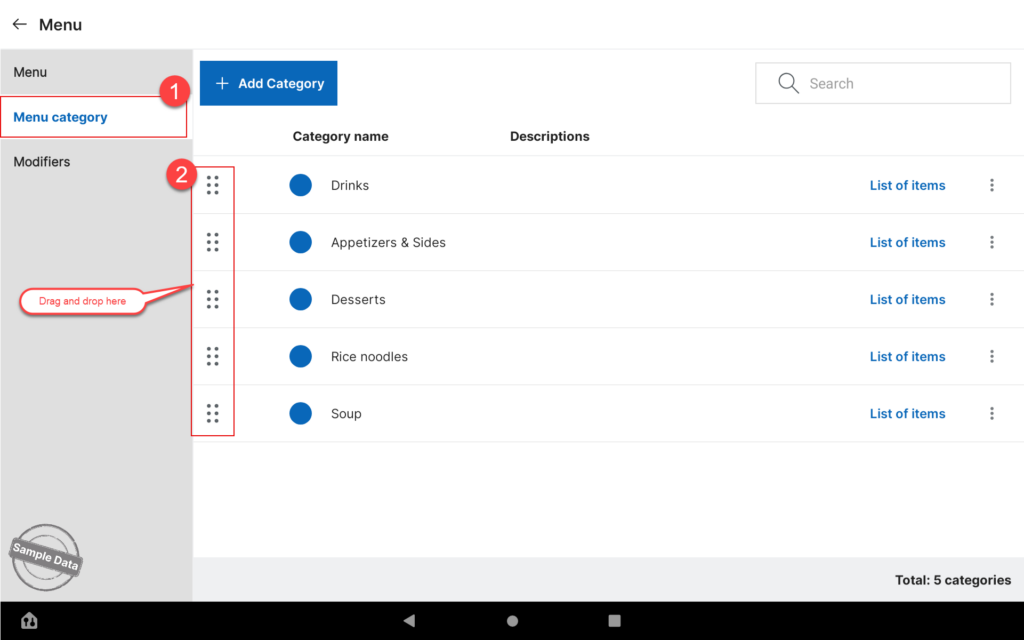
Menu categories on the Organize menu screen follow the order configured in the Categories tab.
Notes:
- Users must have Edit categories permission to reorder menu categories. Without this permission, category reordering is disabled.
- Category reordering applies only to Menu offline.
- Uncategorized always remains at the end of the list and cannot be moved.
5. Review the Menu After Reordering
- Return to the Order entry screen.
- Check the display order of the menu categories.
- Open each category to verify the positions of the updated items.
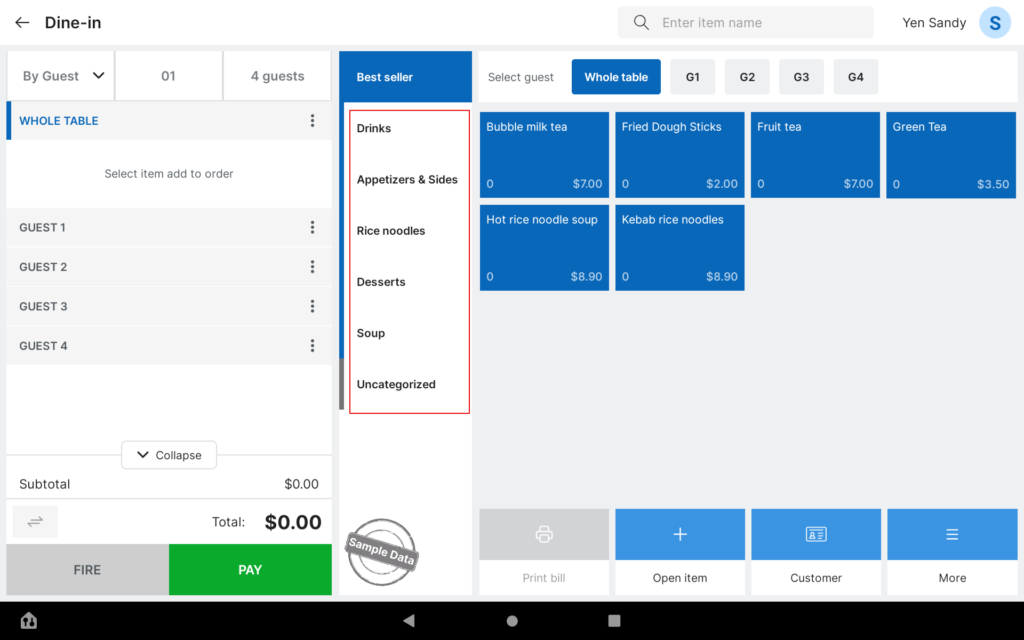
The menu order is synchronized between the management site and sales devices, so the restaurant uses the configured item and category order across these platforms.
Have a nice day!


