

Nội dung có trong bài
Ẩn
I. Purpose
The flat-price item promotion feature allows restaurant managers to offer selected menu items at a fixed promotional price for a specific period.
II. Instruction steps
- On the Dashboard, go to Promotion.
- Click the arrow icon next to Add promotion.
- Select Flat price item.
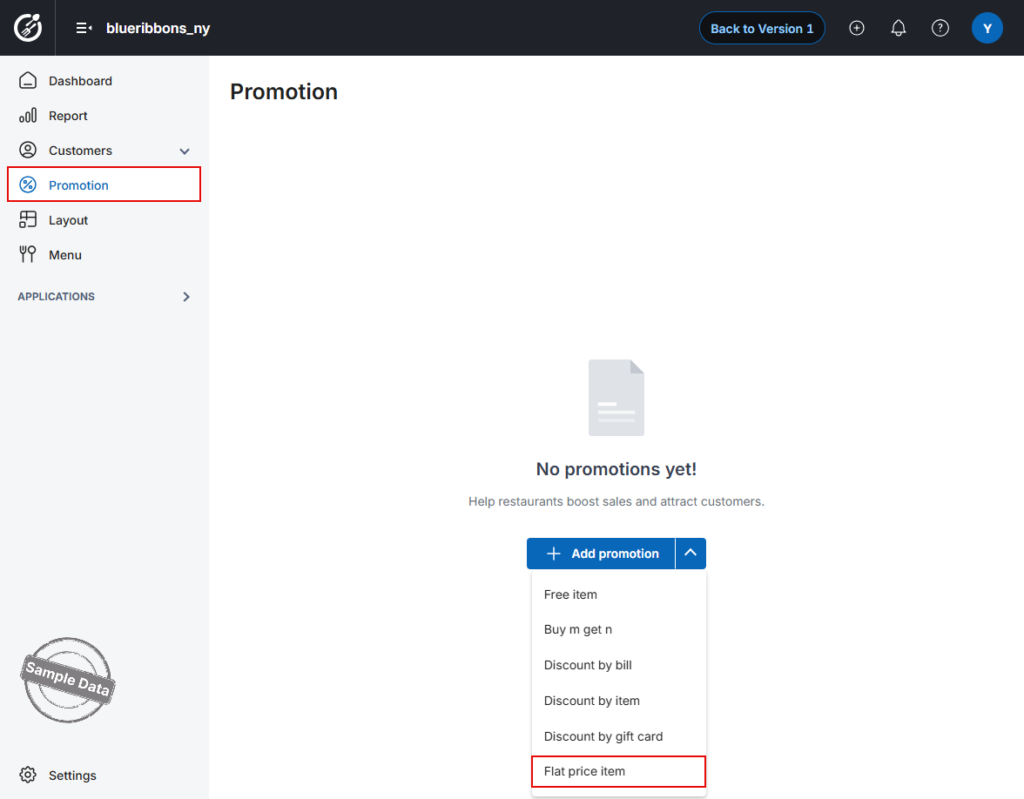
- Enter the promotion name to identify this program.
- Select the date range.
- Configure:
- Applicable time
- Days of the week (optional)
- If not configured, the promotion will apply to all days of the week.
- Enter the fixed price to be applied to selected items.
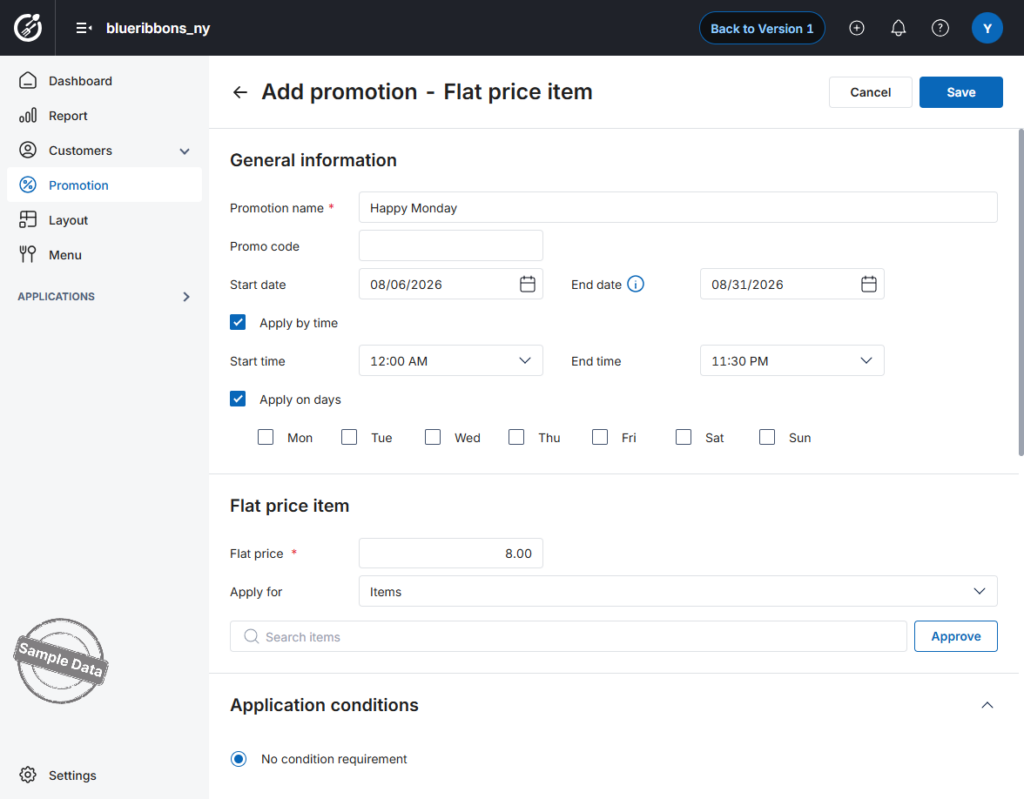
5. Choose where the promotion applies:
- Specific items
- Item categories
- All items
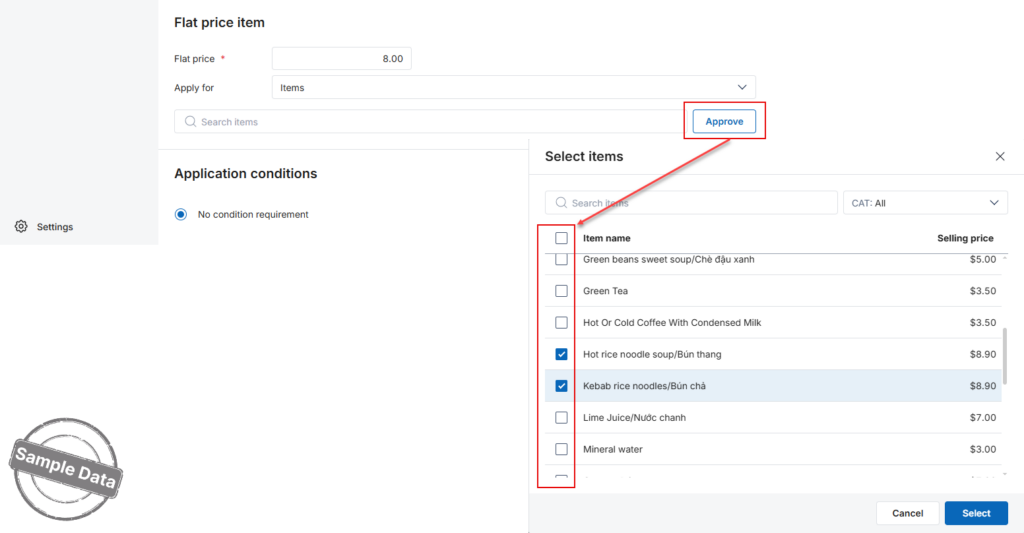
Select Applicable Items
- Click Approve.
- Select the items you want to apply the promotion to.
- Click Select to confirm.
6. Configure Additional Conditions (Optional)
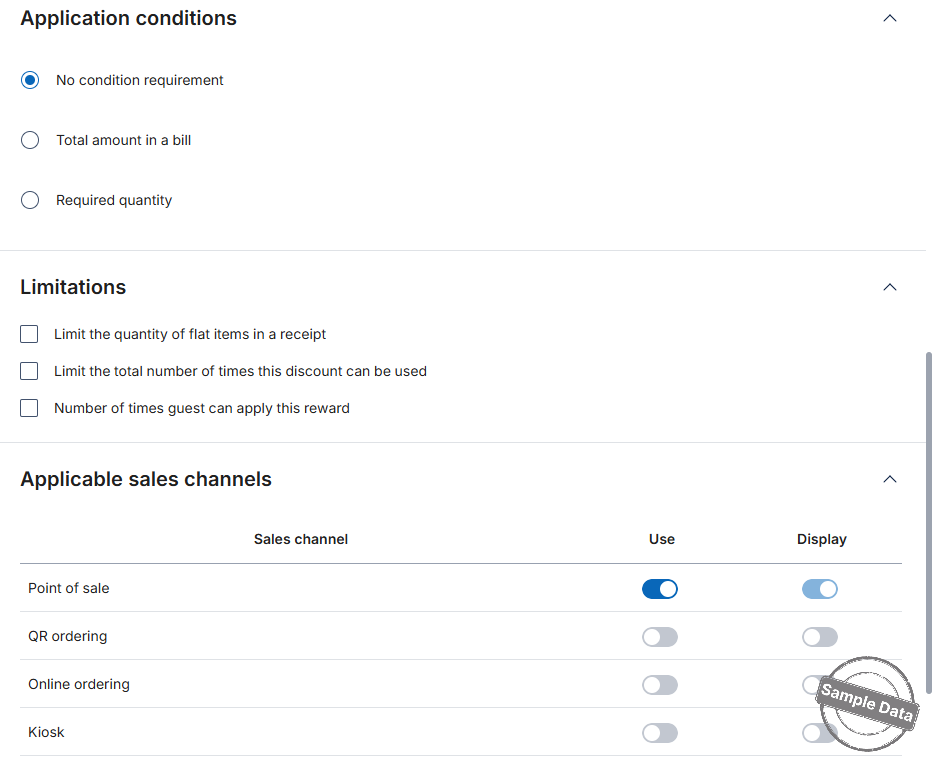
Application Conditions
- No condition
- Total amount in a bill
- Required quantity
Limitations
- Limit quantity of flat-price items per receipt
- Limit total number of times the promotion can be used
- Limit number of times per customer
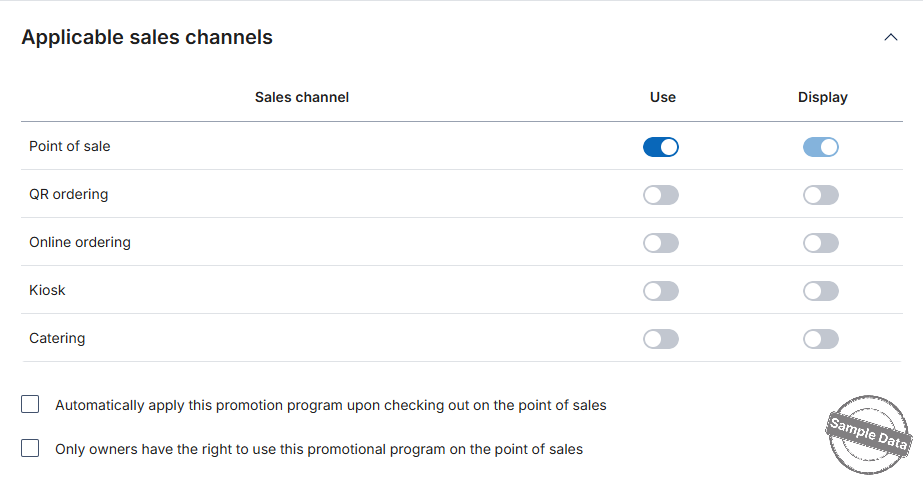
7. Select Sales Channels
Choose where the promotion will be applied:
- Point of Sale
- QR Ordering
- Online Ordering
- Kiosk
- Catering
You can also:
- Enable Use → Apply promotion on that channel
- Enable Display → Show promotion to customers
Click Save to apply the promotion.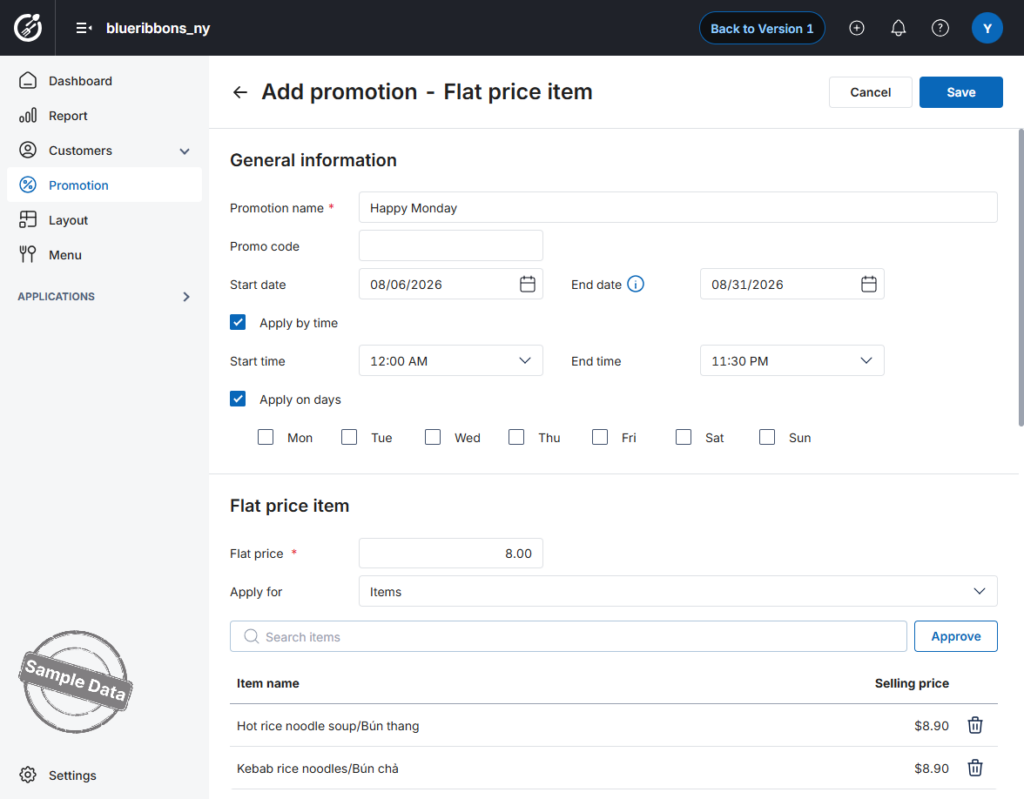
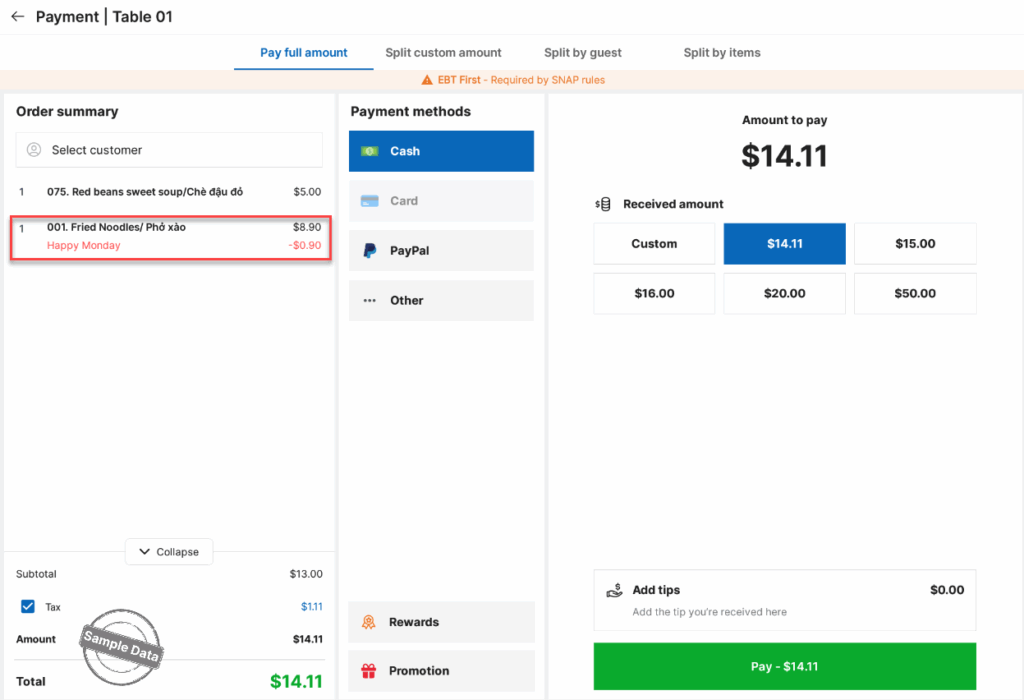
Here is how the item with flat price is shown upon checking out.
Have a nice day!


