

I. Purpose
The AI Description Generator helps restaurant managers quickly create clear and engaging descriptions for menu items.
II. Instruction steps
1. Generate a description for an existing Item
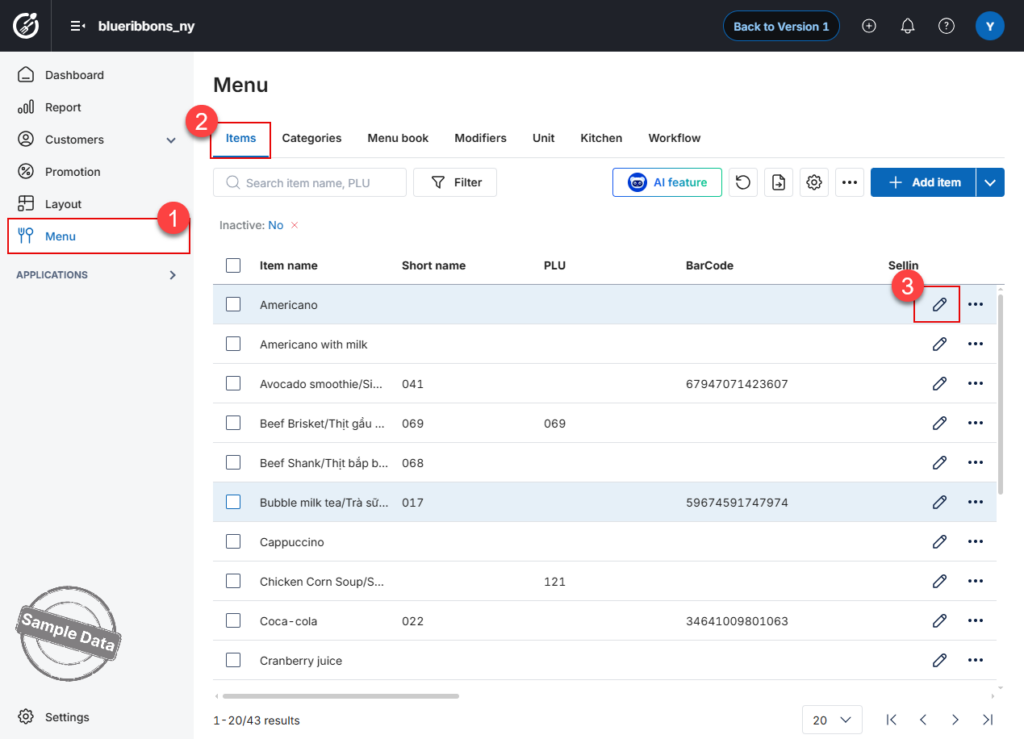
- On the Dashboard, go to Menu.
- Open the Items tab.
- Double-click the item you want to update, or click the Edit icon.
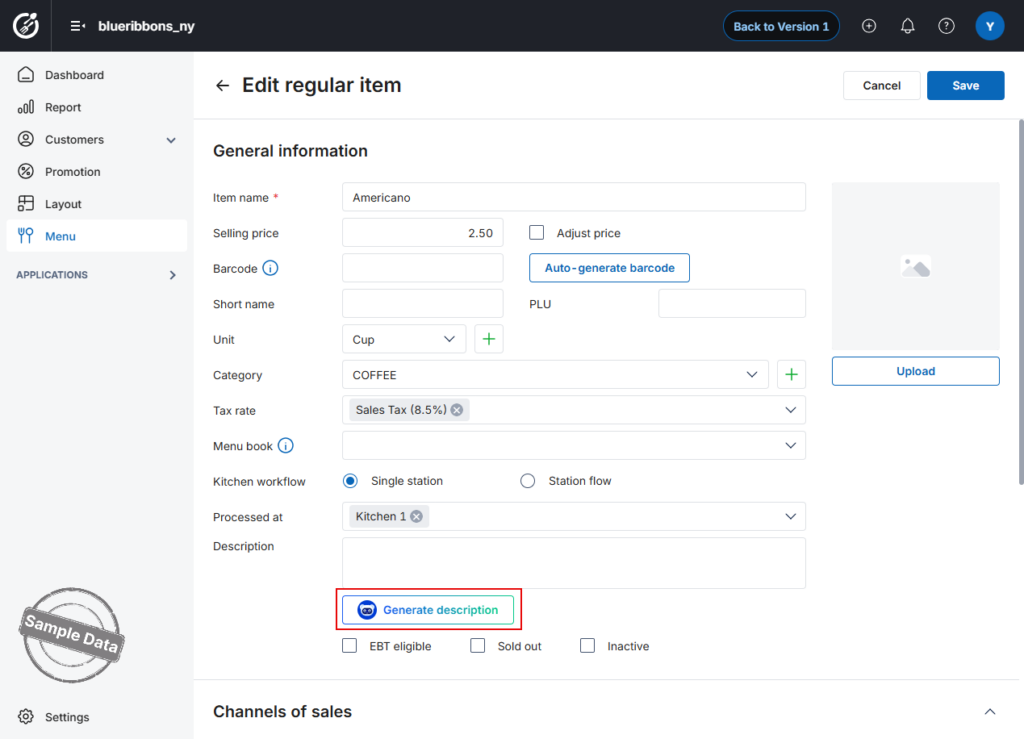
- In the item details, click Generate description.
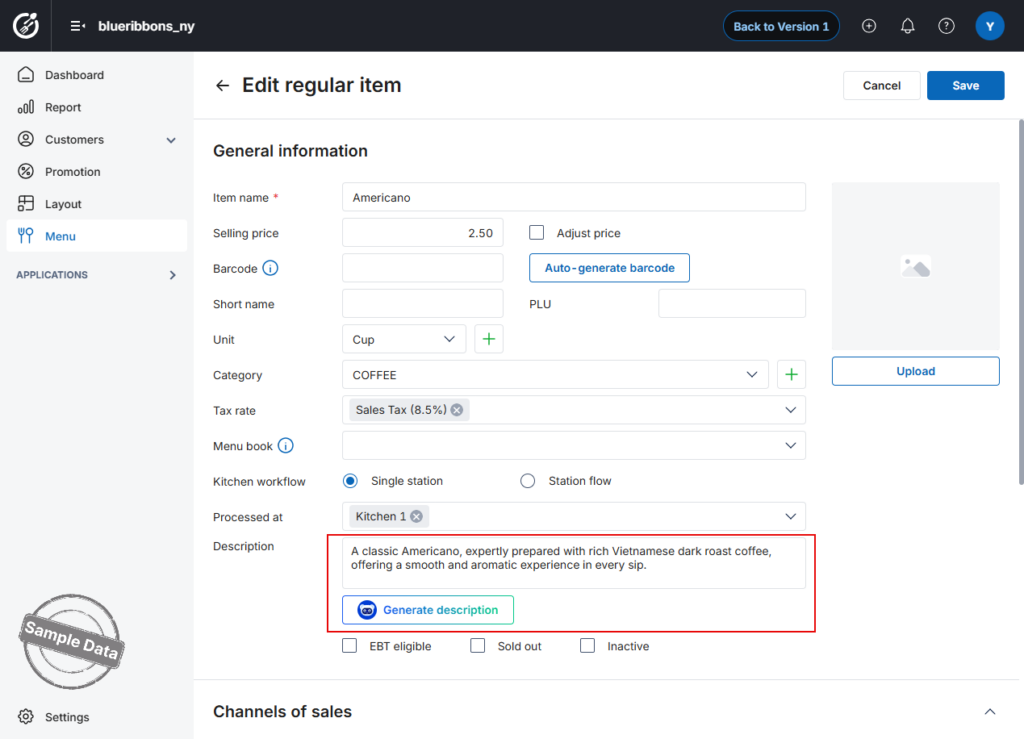
- Review the generated description.
If you are not satisfied with the result, click Generate description again to create another version. You can repeat this step or edit the description manually until it meets your needs.
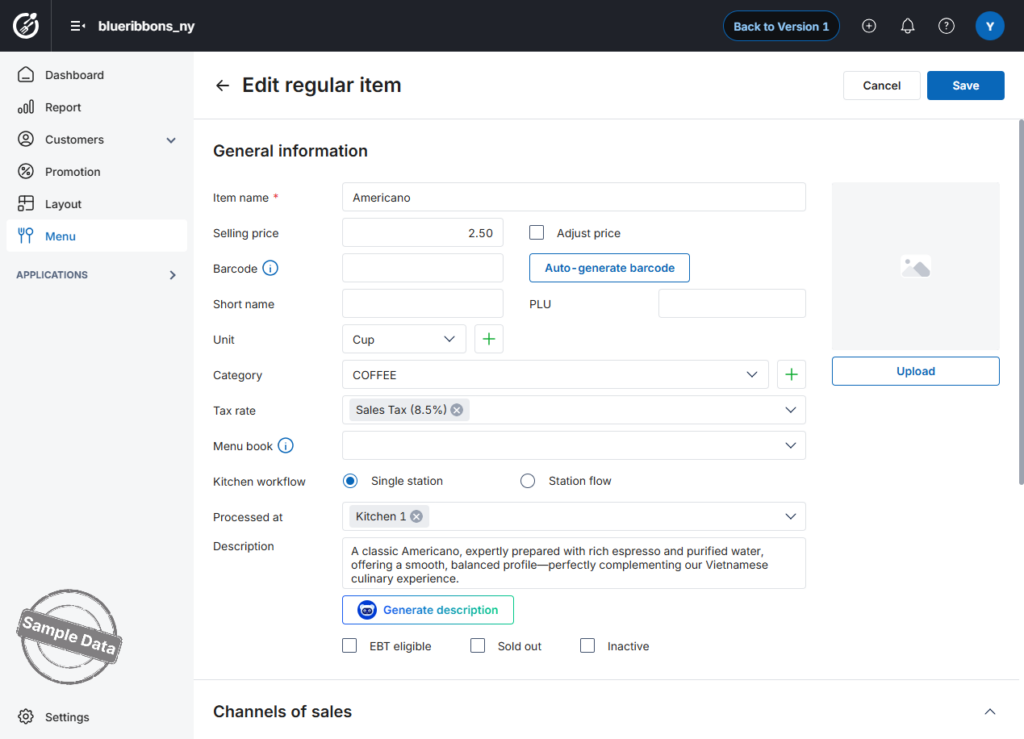
- Click Save to apply the changes.
2. Generate descriptions for multiple items
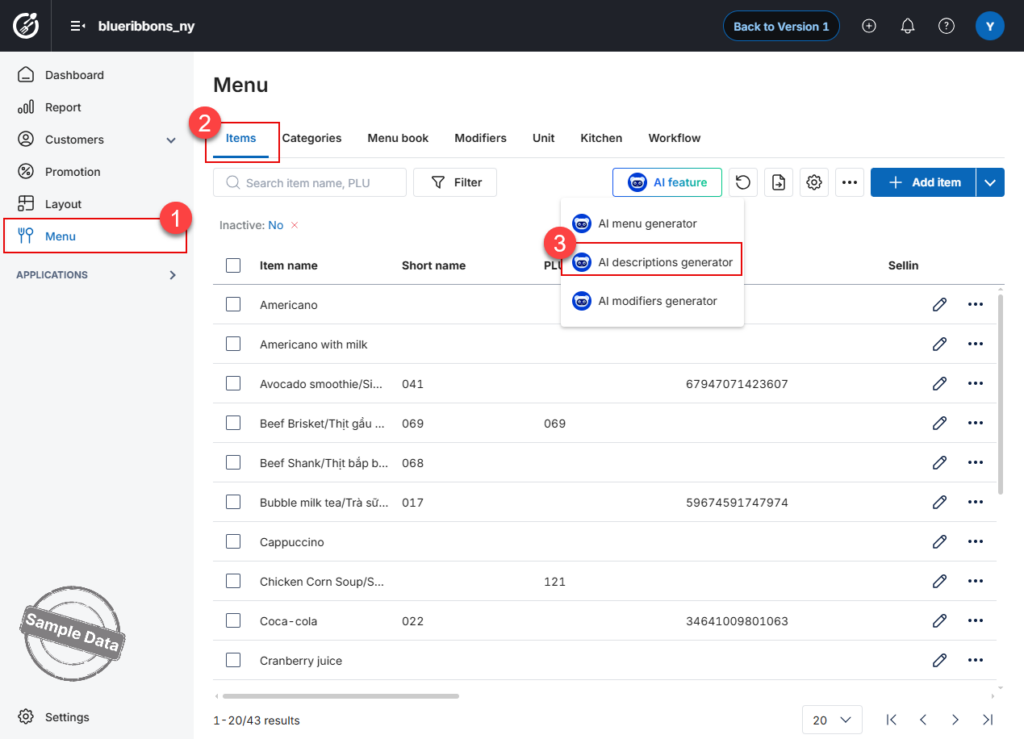
- On the Dashboard, go to Menu.
- Open the Items tab.
- Click AI Feature and select AI Descriptions Generator.
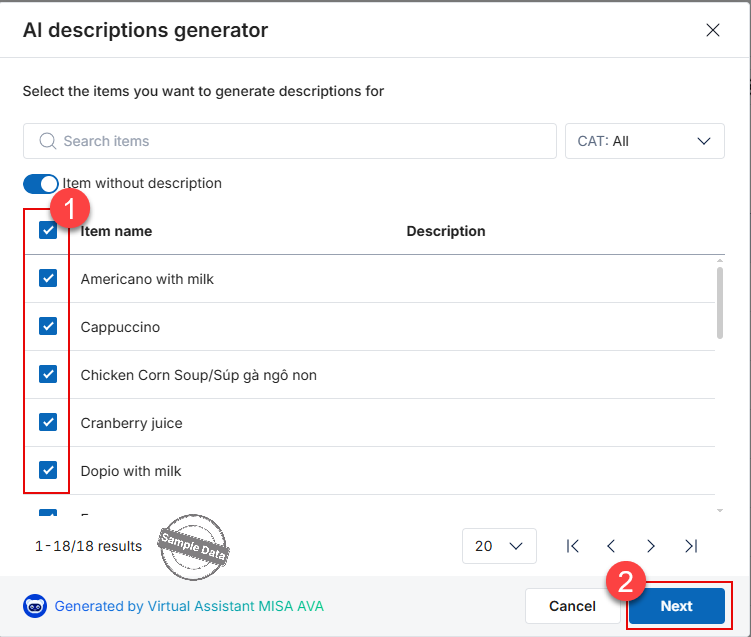
- Select the items for which you want to generate descriptions.
By default, the system displays items that do not yet have descriptions.
- Click Next.
- Select a writing tone:
- Casual
- Formal
- Fun
- Informative
- Custom
If you select Custom, enter your preferred tone or writing instructions.
- Click Generate to create descriptions.
- Click the AVA icon
 to generate additional versions until you find descriptions that meet your requirements.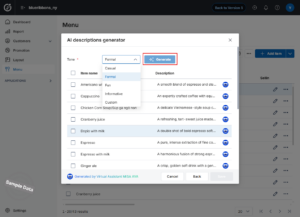
- Select the items whose generated descriptions you want to use.
- Click Save to apply the selected descriptions.
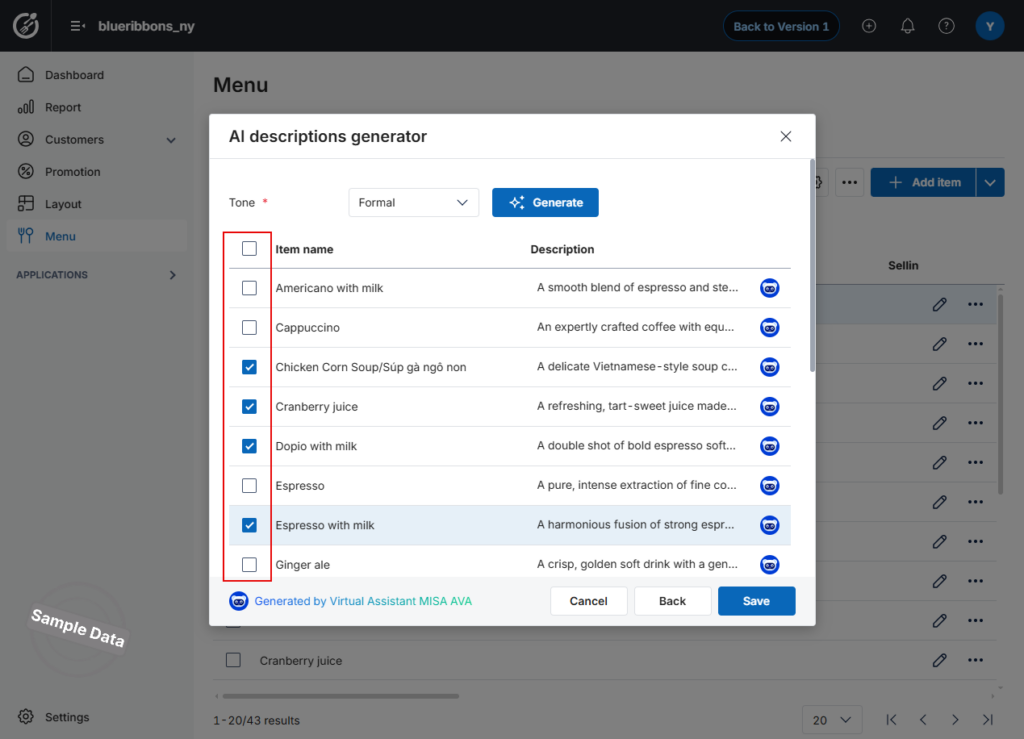
Note: Review the generated descriptions carefully before saving to ensure that the content accurately reflects each menu item.
Have a nice day!


