

I. Purpose
Help restaurant owners and managers change the waitstaff assigned to an existing order without creating a new order.
Managers can reassign an order from the order details or order list screen so another employee can take over serving the customer and managing the order.
II. Instruction Steps
1. Change the waitstaff from the order details screen
- Open the order details screen.
- Tap the icon
 and select Change waitstaff.
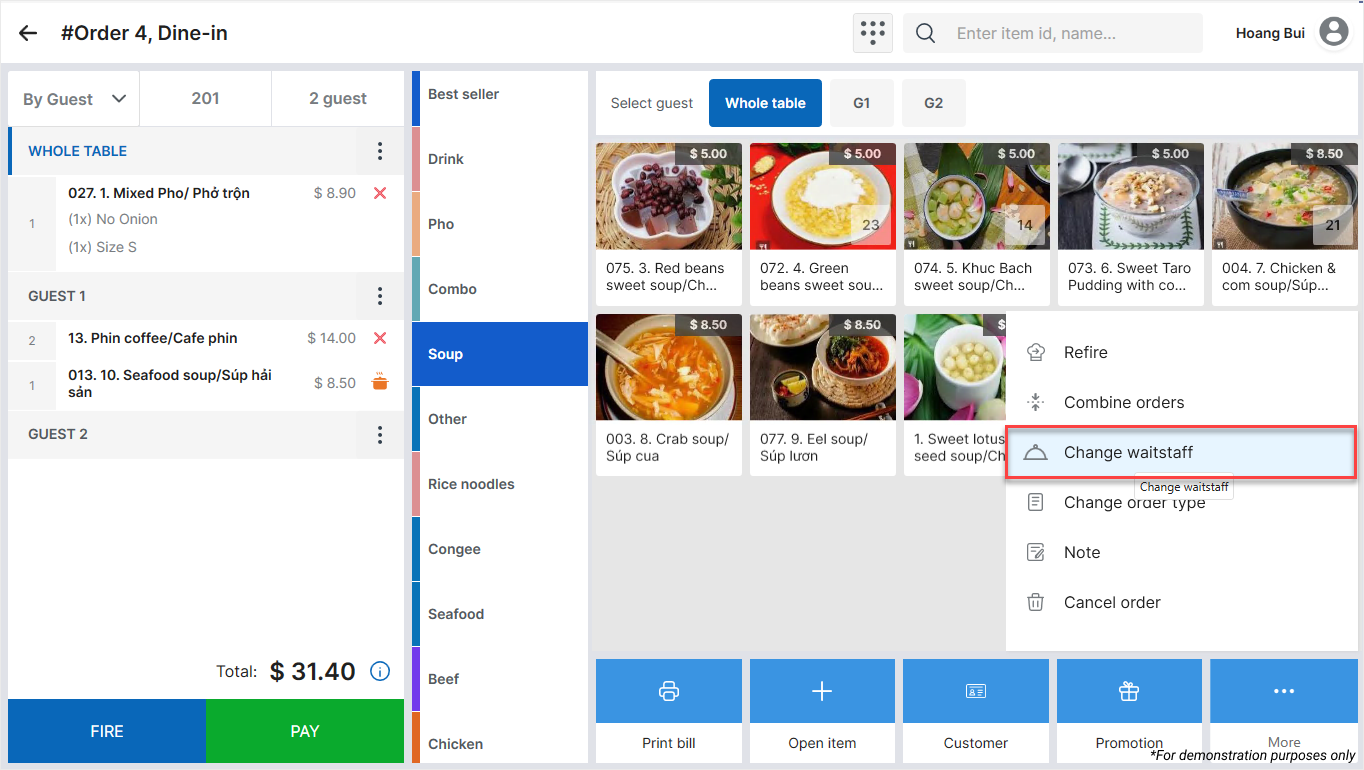
- Tap the icon
 and select the new waitstaff.
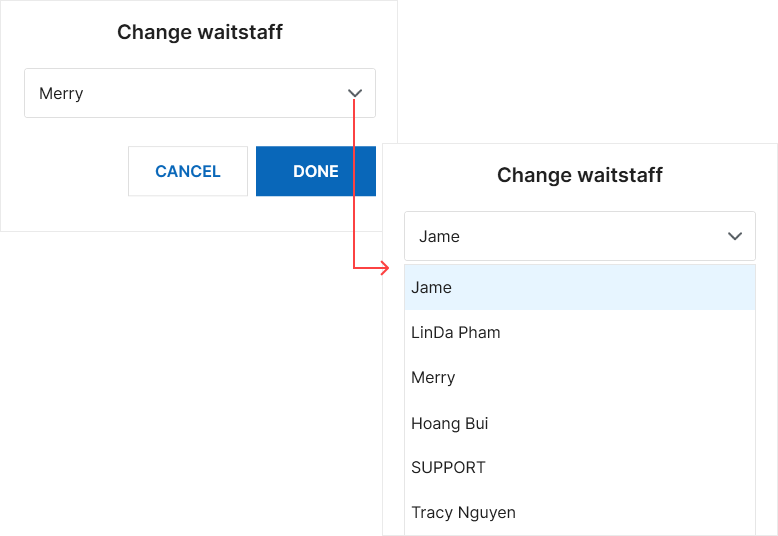
- Tap Done to confirm.
2. Change the waitstaff from the order list screen
- On the order list screen, select the order you want to reassign.
- Tap the options icon and select Change waiter.
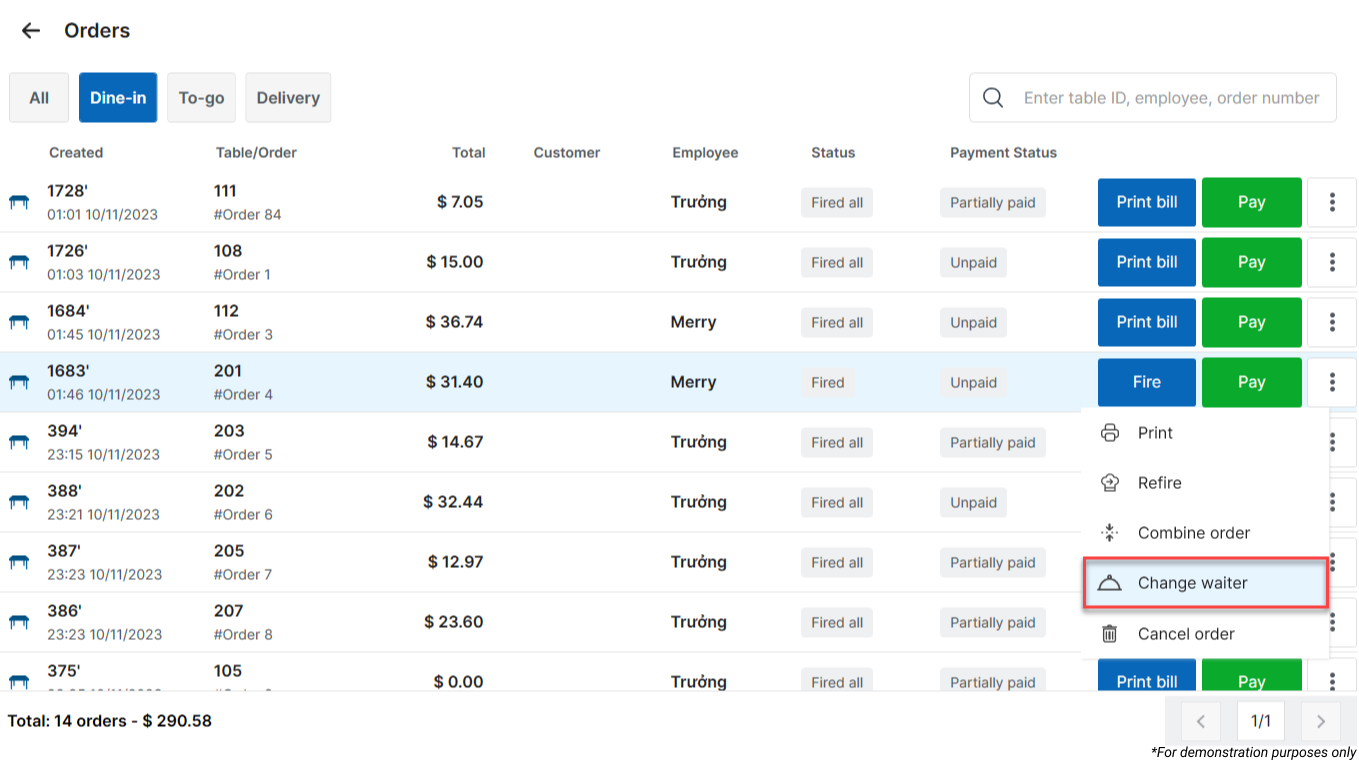
- Tap the icon and select the new server.
- Tap Done to confirm.
III. Notes
If the original waitstaff is viewing the order details and has made changes that have not yet been sent to the Kitchen/Bar, reassigning the order to another waitstaff immediately displays a notification on the original waitstaff’s screen.
Example:
“Order 01 has been transferred to Waitstaff 2. You do not have permission to access Order 01.”
The original waitstaff must select Close to return to the main screen. The system discards any unsaved changes to the order.
Have a nice day!


