

I. Purpose
Help staff cancel an existing order, whether it has not yet been sent or has already been sent to the Kitchen/Bar.
Staff can record the cancellation reason and remove the canceled order from the order list, subject to the required authorization.
II. Instruction steps
1. Before the order is sent to the Kitchen/Bar
- On the Order details screen, tap the icon
 and select Cancel order.
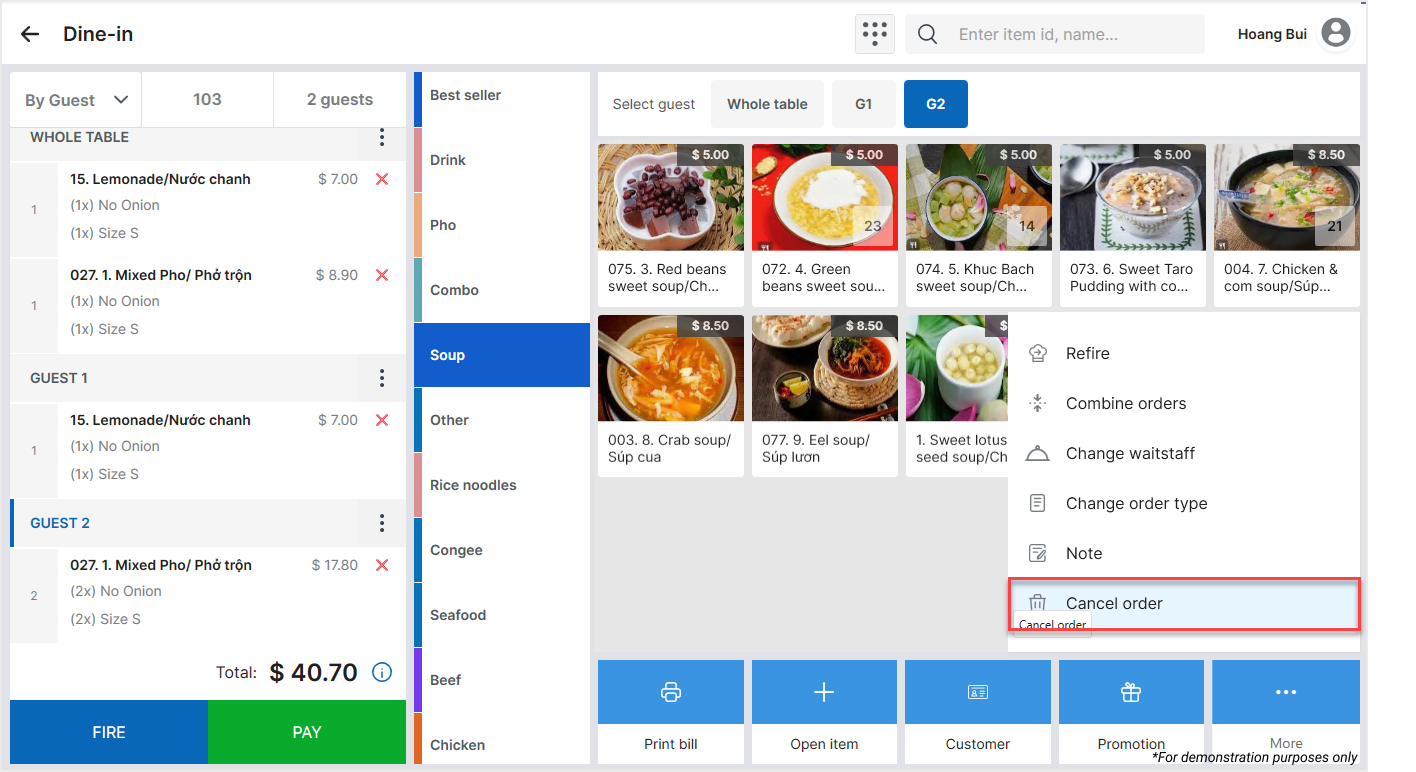
- Select the cancellation reason.
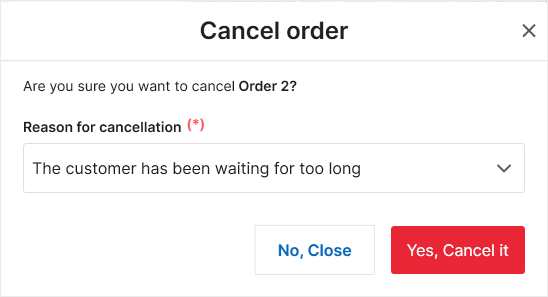
- Tap Yes, Cancel it to confirm.
The canceled order is removed from the order list.
2. After the order has been sent to the Kitchen/Bar
- Select the order the customer wants to cancel.
- Tap the icon and select Cancel order.
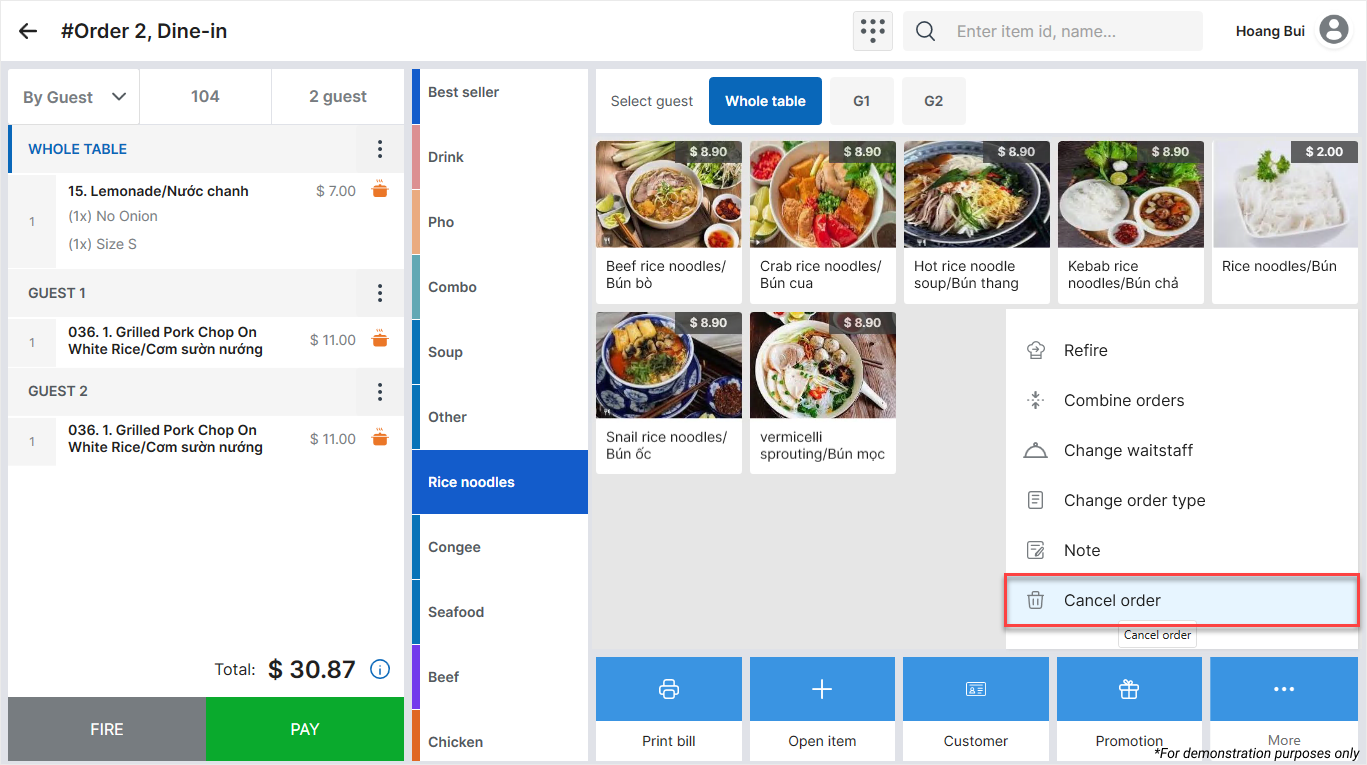
- Select the cancellation reason.
- Tap Yes, Cancel it to confirm.
The canceled order is removed from the order list.
III. Notes
The following roles can authorize order cancellations:
- Restaurant manager
- System administrator
Have a nice day!


