

Nội dung có trong bài
Ẩn
I. Purpose
Help cashiers split a bill into equal covers when customers want to share the total bill, and process payment for each portion.
II. Instruction Steps
- On the restaurant’s POS Order entry screen, select the items requested by the customers from the relevant menu categories.
- Tap Pay.

- Select Split custom amount. The system displays a separate row for each payment portion.
- By default, the number of portions matches the guest count.
- Increase or decrease the number of portions as requested by the customers.
- Select the portion or portions to pay, then choose a payment method from the options configured by the restaurant.
- Enter the tip amount, then tap Pay.
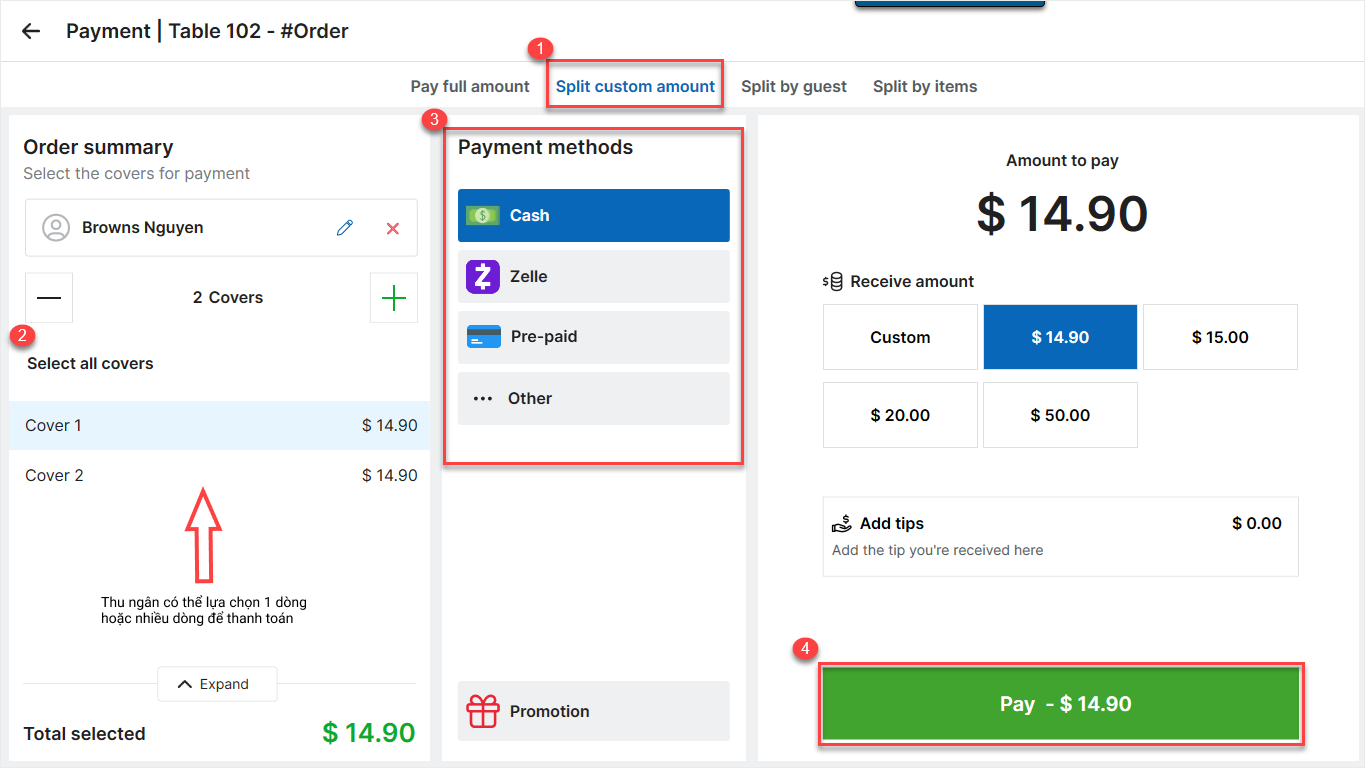
- Select Next Payment to process payment for the next portion. Repeat until all portions have been paid.
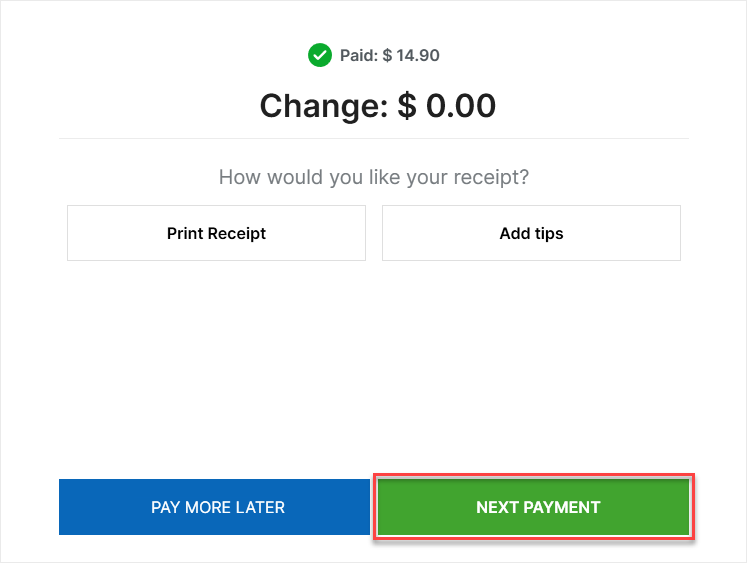
- After payment is completed, the cashier can:
- Select Print Receipt to print a receipt for the customer.
- Select Add tip if the customer wants to add a tip.
- Select Send Receipt Via SMS to send the receipt to the customer by text message.
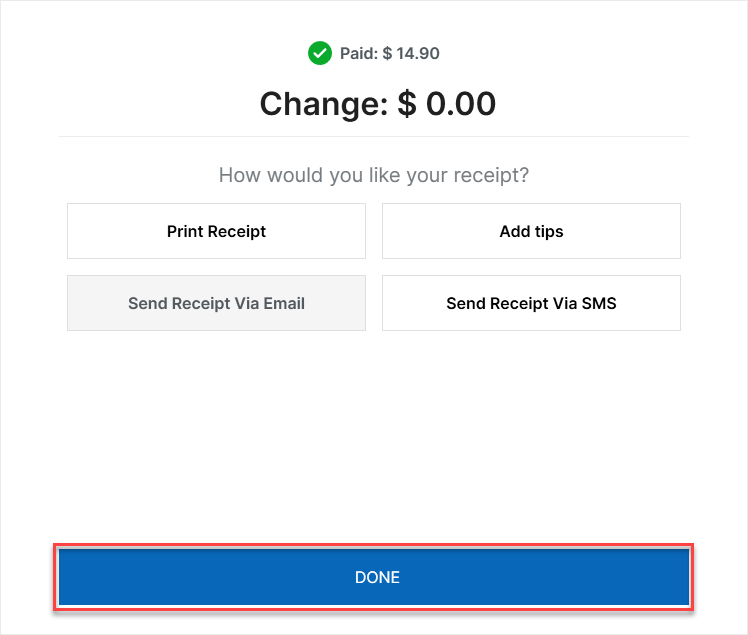
- Tap Done to close the order.
III. Notes
- Cashiers can select one or more payment rows to pay at a time.
- The number of equal portions can be adjusted before payment. Once one portion has been paid, the number of portions can no longer be increased.
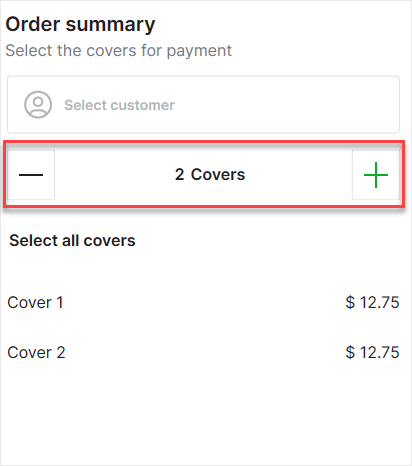
- After selecting Split custom amount, the payment mode cannot be changed to Pay full amount, Split by guest, or Split by item.
Have a nice day!


