

Nội dung có trong bài
Ẩn
I. Purpose
Help staff quickly add custom-priced modifiers to individual order items at the customer’s request.
II. Instruction steps
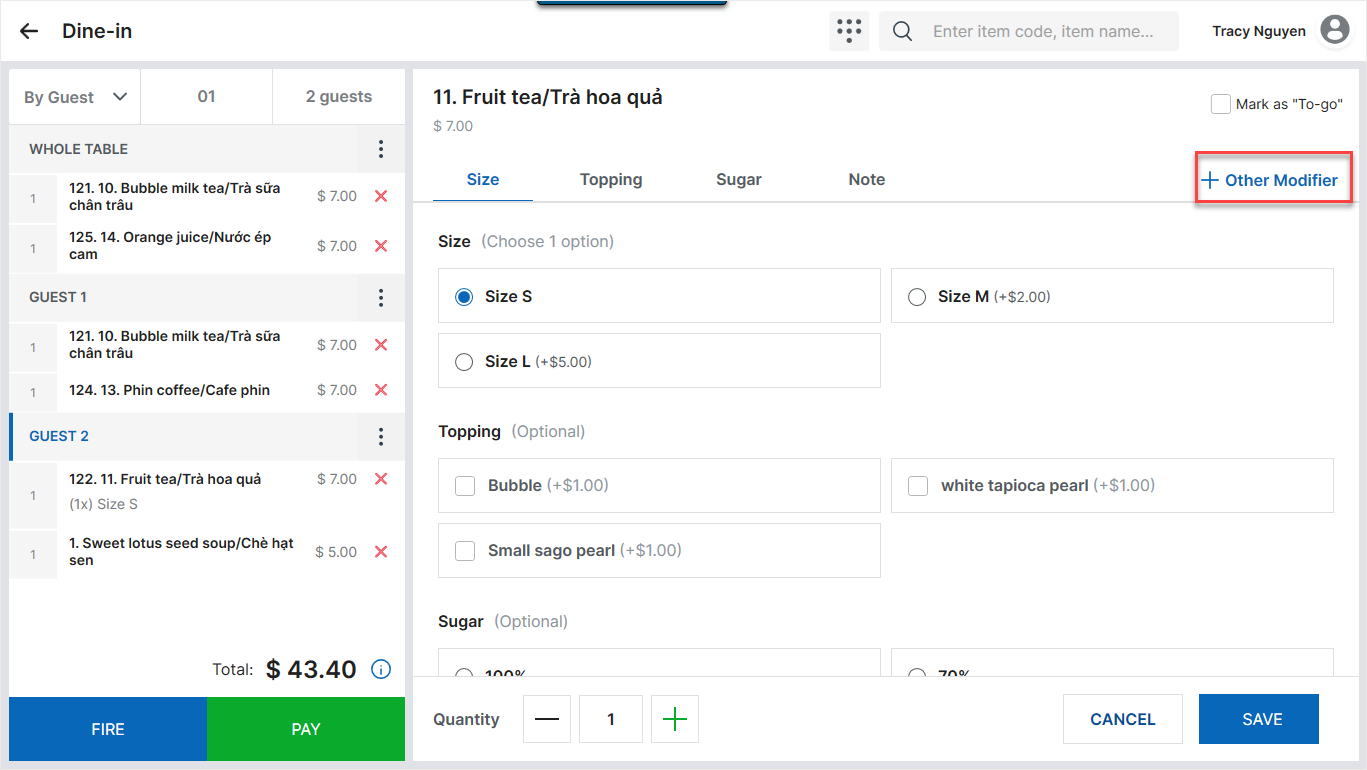
- On the Order entry screen, select an item to open the modifier selection screen.
- Select Other Modifier to quickly add a modifier.
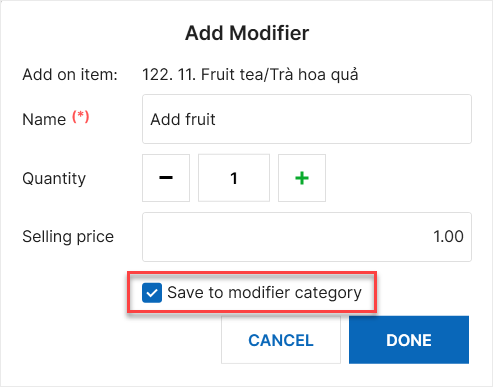
- Enter the modifier information.
- Select Save to modifier category if you want to save the modifier for future orders, then tap Done.Note: If Save to modifier category is not selected, tapping Fire or Save order saves the modifier only for the current order. After the bill is paid, the modifier is not available for subsequent orders.
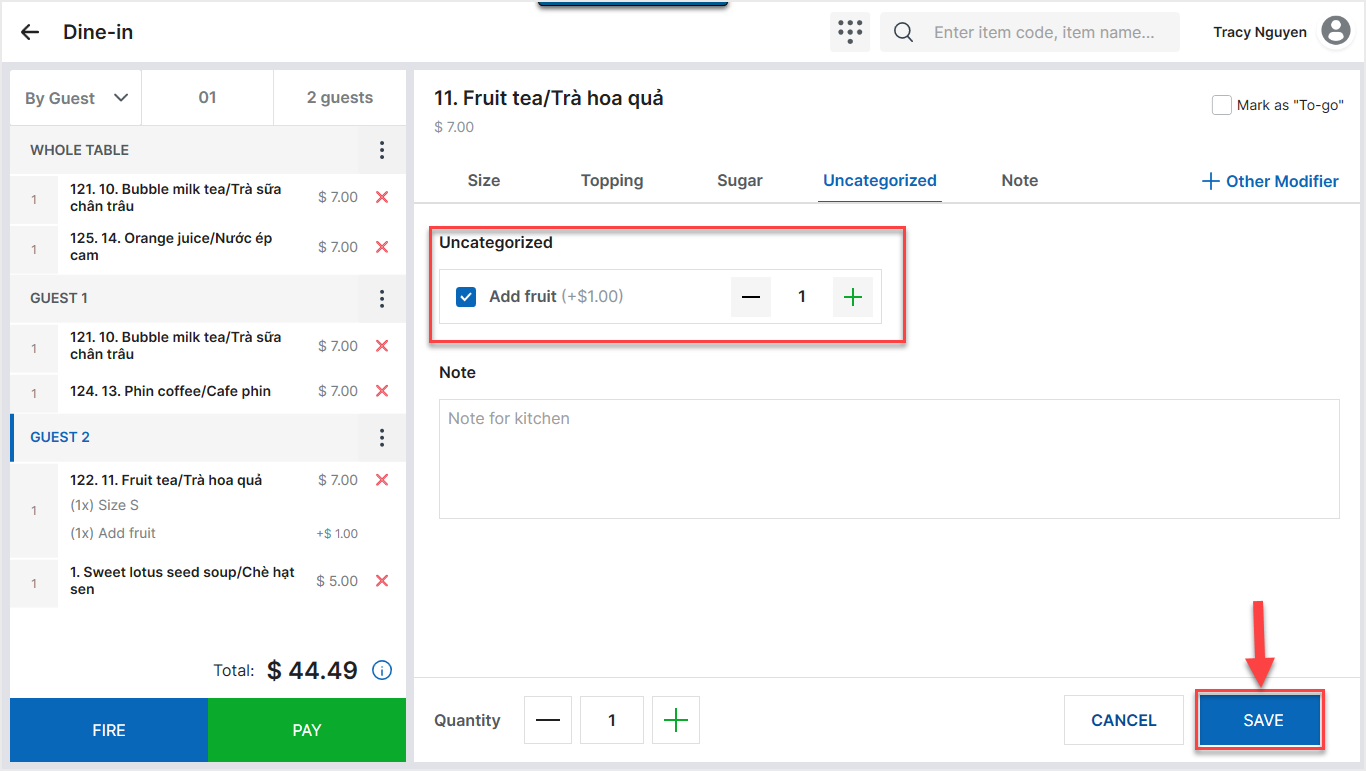
- Tap Save to apply the modifier to the item.
III. Notes
- If Save to modifier category is selected, the new modifier is synchronized to the modifier list under Uncategorized after you tap Fire or Save order.
- On the management site, open Menu and select the Uncategorized modifier category:
- Settings such as Multi select and Required cannot be configured.
- Only the list of items to which the modifier category applies can be edited.
- If an item with an Other Modifier is removed from an order:
- Original order: The added modifier remains in the selected item’s Uncategorized modifier category.
- Transferred items: The new modifier is retained only for the item transferred to the destination order. If the same menu item is added separately to that destination order, the modifier does not appear under Uncategorized for the newly added item.
Have a nice day!


