

I. Purpose
With the Reservation feature, the customers can easily make reservations and the staff can manage tables efficiently.
II. Tutorial video
Watch the video here: https://youtu.be/VgoITNY1G8g
III. Instruction steps
1. Online reservation
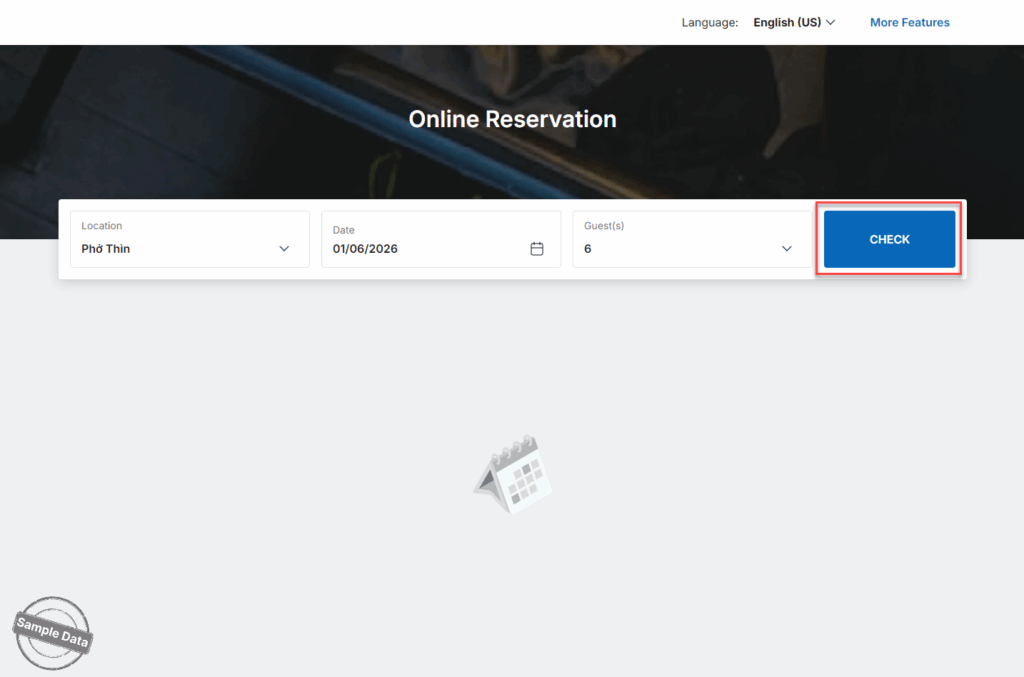
On Online reservation page of the restaurant, the customer selects date, number of guests and click Check.
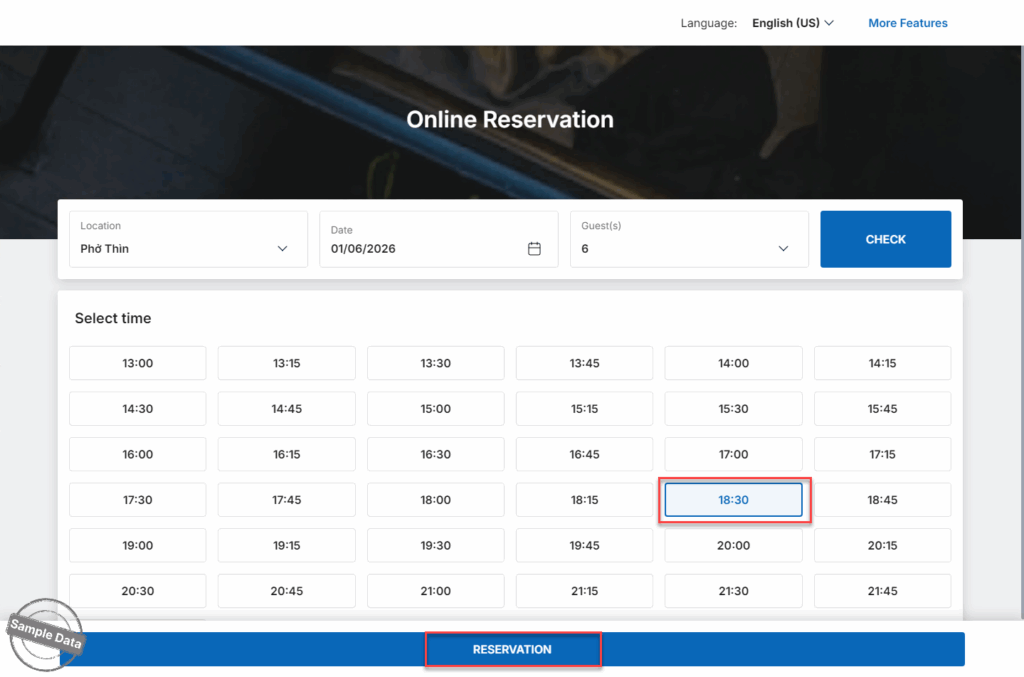
Select time and click Reservation.
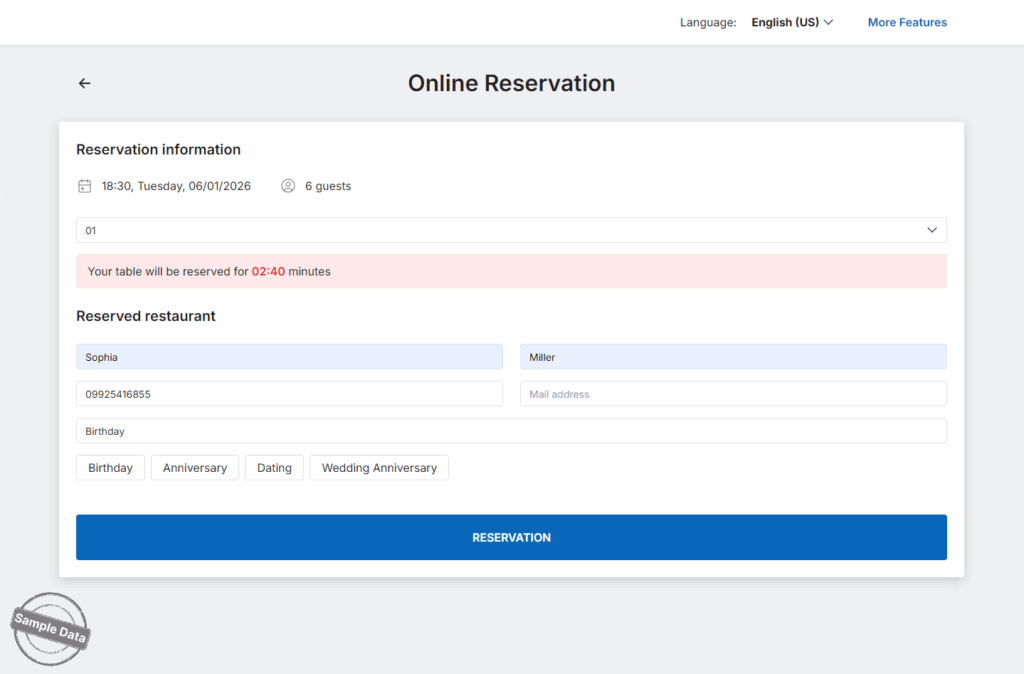
Fill in information and click Reservation.
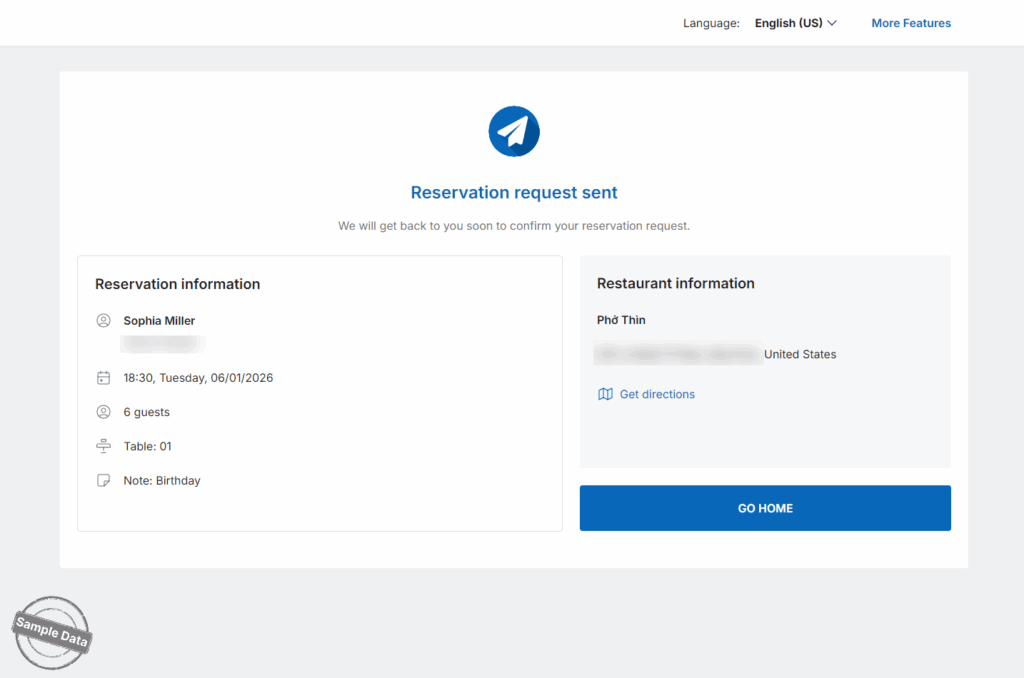
Here is the reservation result.
2. Create reservation on POS
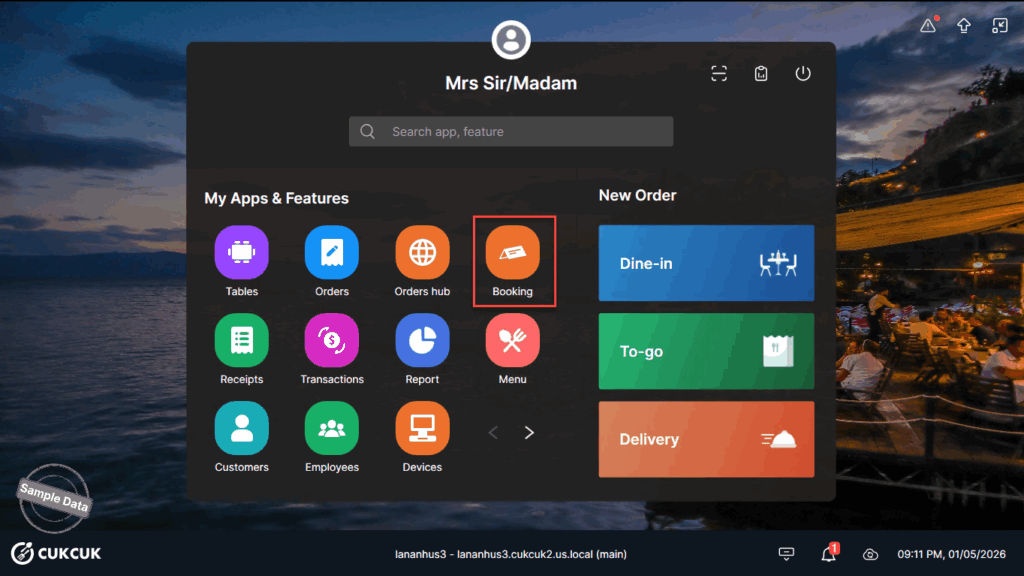
On POS, go to Booking.
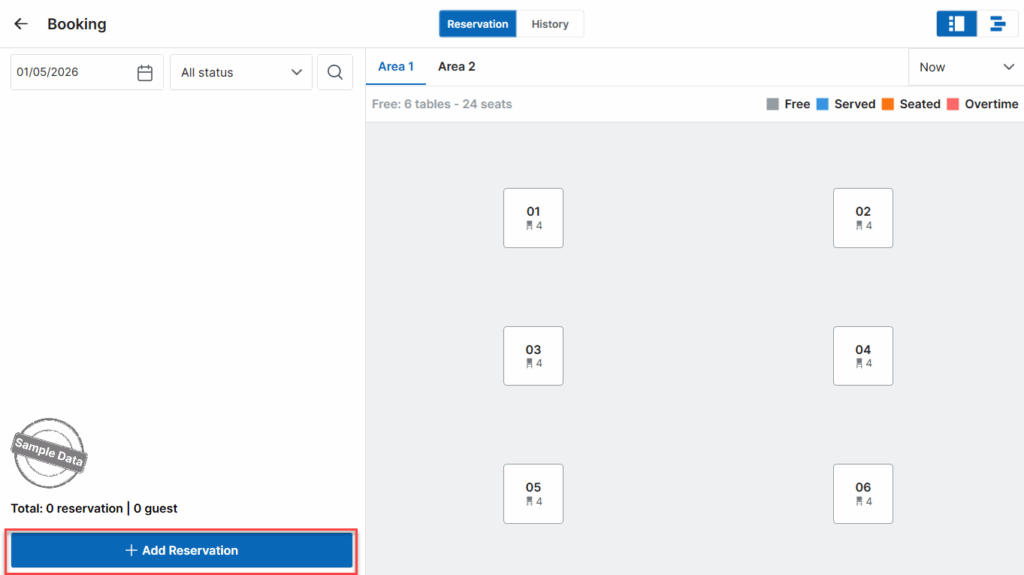
Click Add reservation.
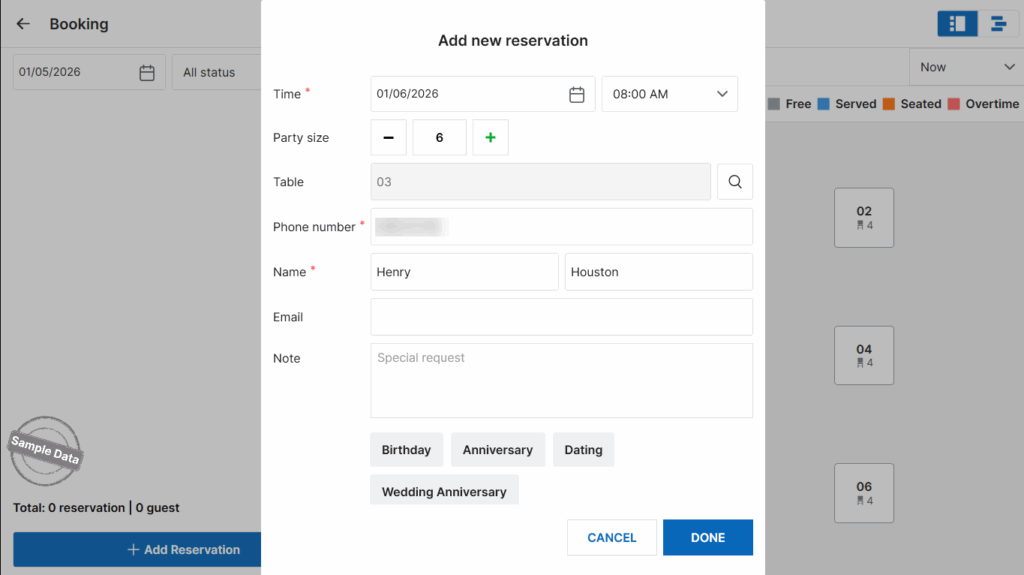
Select date and time, party size, select table (if applicable), and guest information. Then, click Done.
3. Manage reservations on POS
Select date to check reservations. Click Confirm to confirm online reservations.
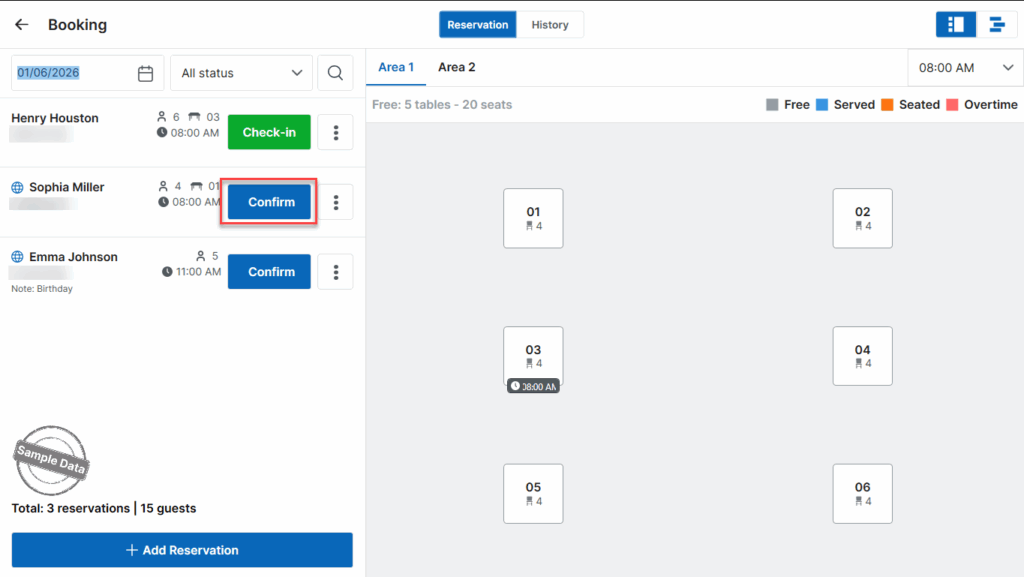
When the customer checks in, click Check-in.
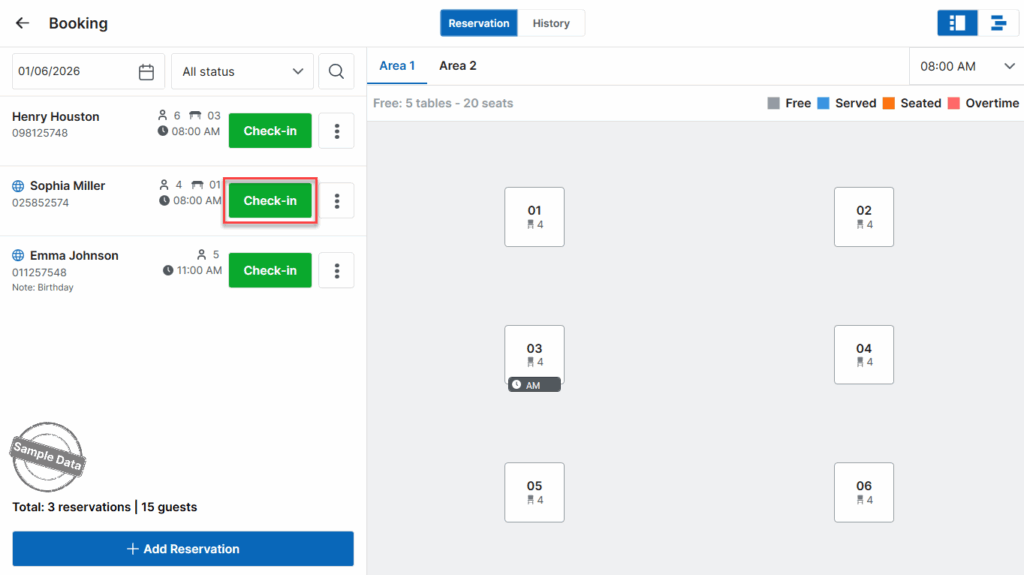
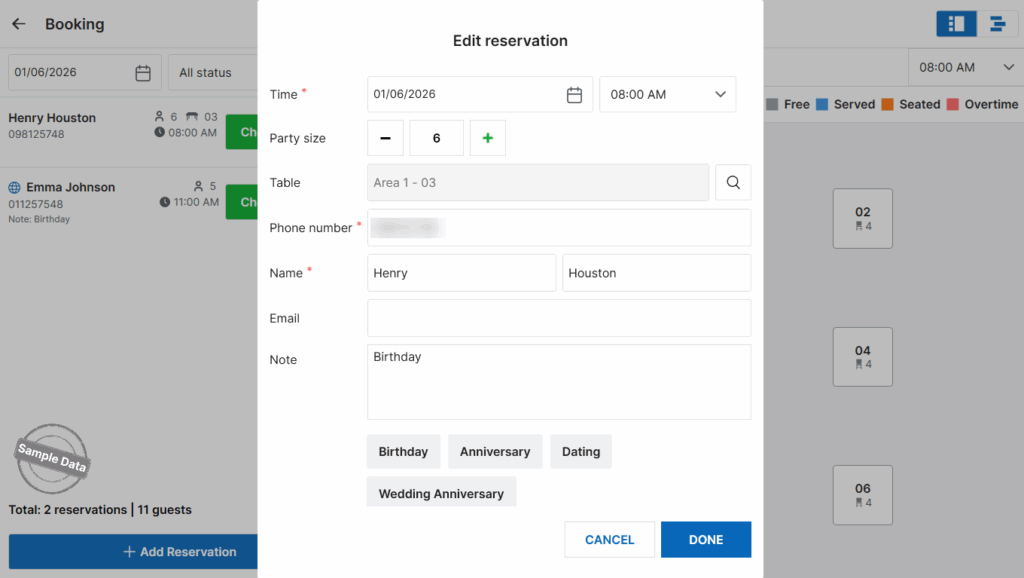
If you want to edit the reservation, click this icon and select Edit.

Update information and click Done.
Have a nice day!


